Scout Learning System · 童軍學習系統

課程全流程示範
Course lifecycle demo

From setting up an approval flow to a learner completing the course and submitting the evaluation, shown by each role in turn.

Site slsuat.scout.org.hkDate 22 Oct 2026Length about 50 minutes
Roadmap

Eight stages, five roles

01審批設定 SetupSystem Course Master
02建立訓練班 Create courseSystem Course Master
03編排內容 Build contentCourse Master
04提交及審批 Submit & approveCourse Master · Approver
05報名及錄取 Apply & enrolLearners · Course Master
06學習 LearnLearner
07評估及完成 Evaluate & completeLearner
08取消訓練班 CancelSystem Course Master
Cast

Demo accountsAll log in through SMIS single sign-on at /user-login/

RoleSMIS loginScout IDUsed for
System Course MasterACCA012025500394Approval setup, creating the course, cancelling
Group Course MasterSULK012025500089Course Leader on the demo course
Course MasterSULN012025500071Building content, reviewing applications
ApproverSULE012025500097TRG Approval Flow, level 1
LearnersSULH01 · SULD01 · SULD03…105 · …113 · …139Applying, learning, the waitlist
Stage 01 · Setup

How a course finds its approverswp-admin → 審批範本 Approval Templates / 課程類別 Course Categories

ACCA01 System Course Master
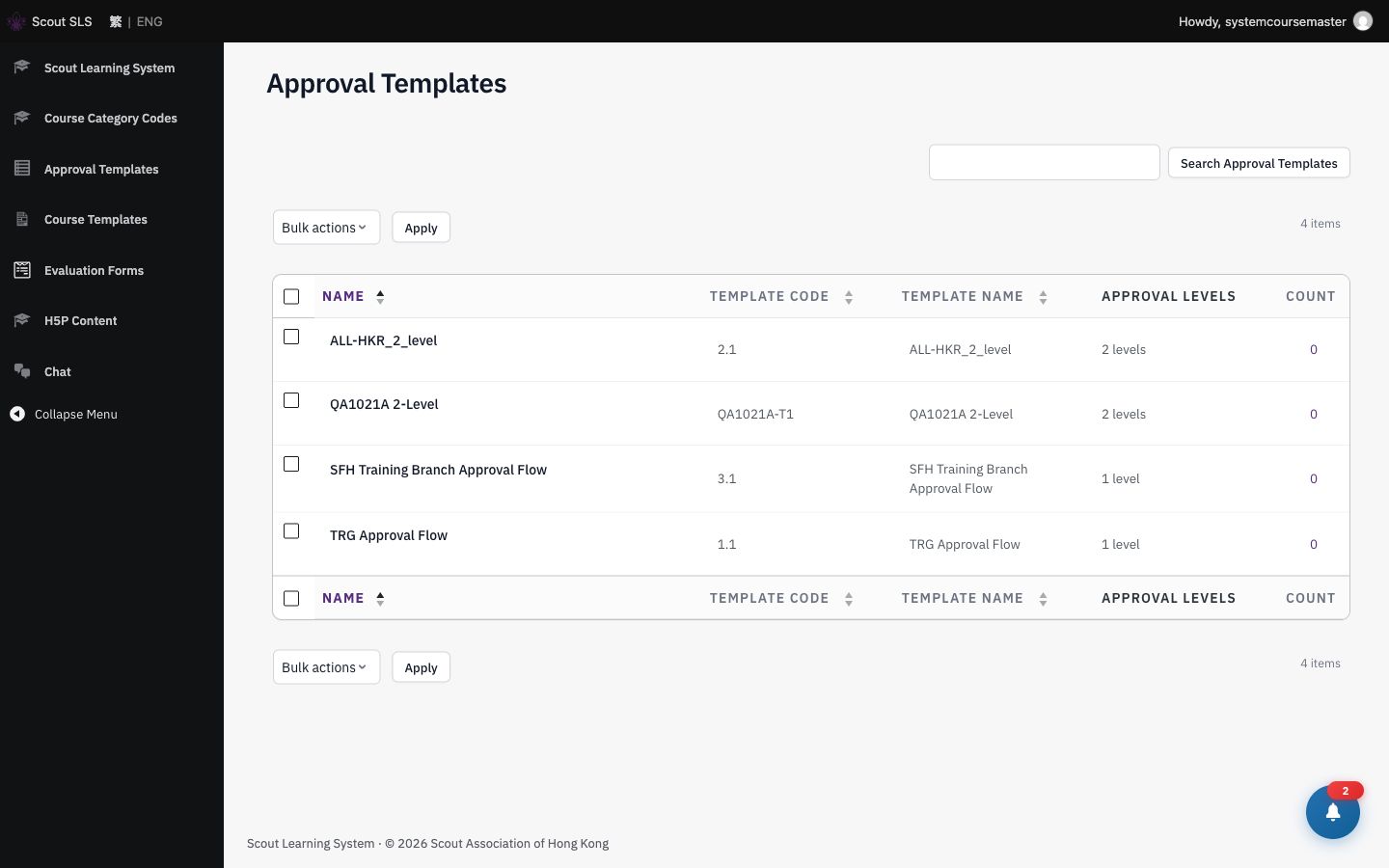
  1. Open Approval Templates, then TRG Approval Flow. Level 1 approver: SULE01.
  2. Open Course Categories, then 領袖木章訓練班. Its flow table maps Training Branch 1 → TRG Approval Flow.
  3. Point out the second row, Hong Kong Island Region1, which runs a 2-level flow (ALL-HKR_2_level) and then TRG.
  4. Back on the template list, a template in use shows “In use – cannot delete”.

Key message

  • Category + organising unit decide the approval flow automatically.
  • Each flow can have up to 4 stages, each with levels and co-approvers.
  • A unit with no mapping can't be submitted, so nothing slips through unapproved.
Stage 01 · Screens

Setup on slsuat

Approval templates list
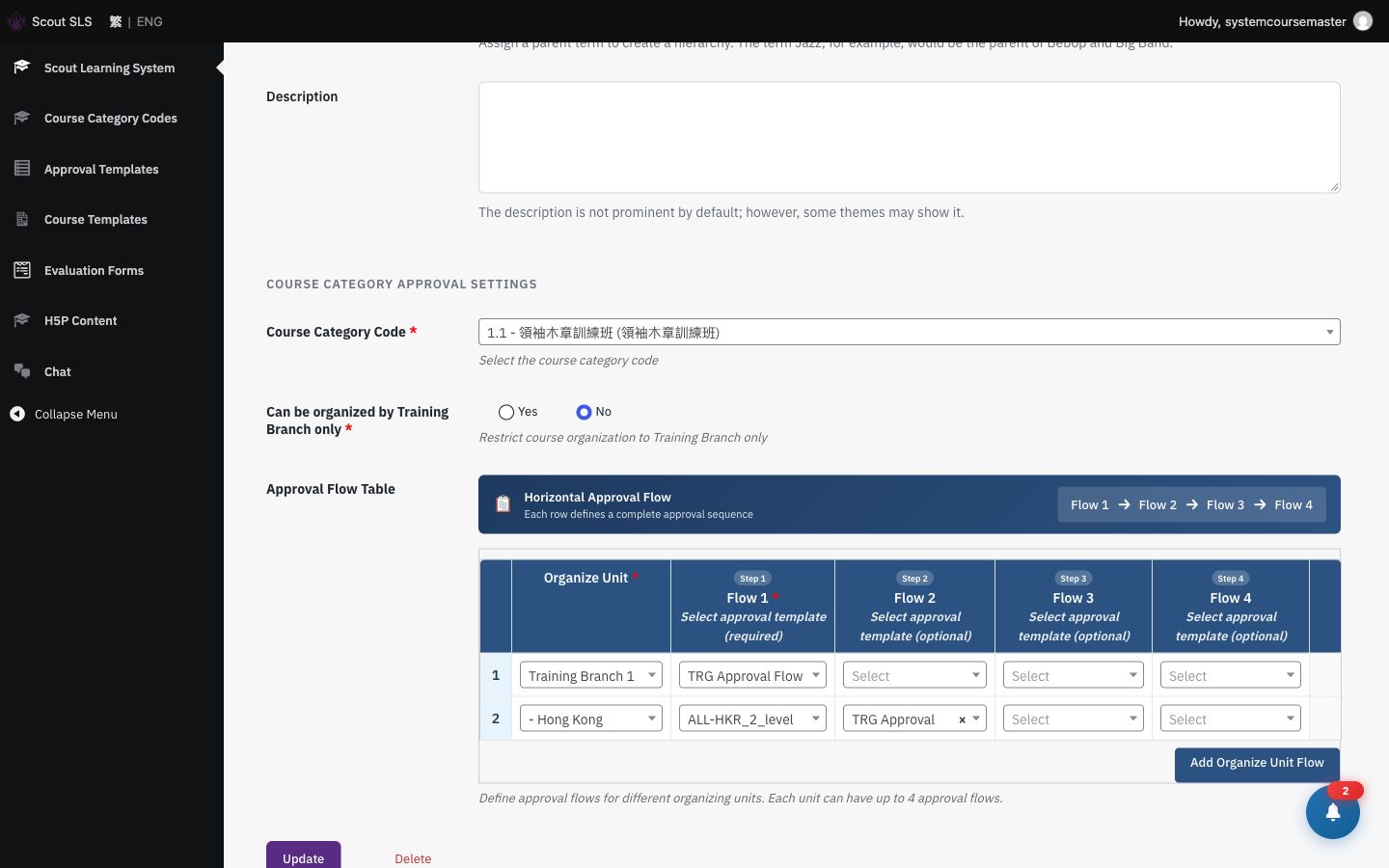
領袖木章訓練班 → flow table
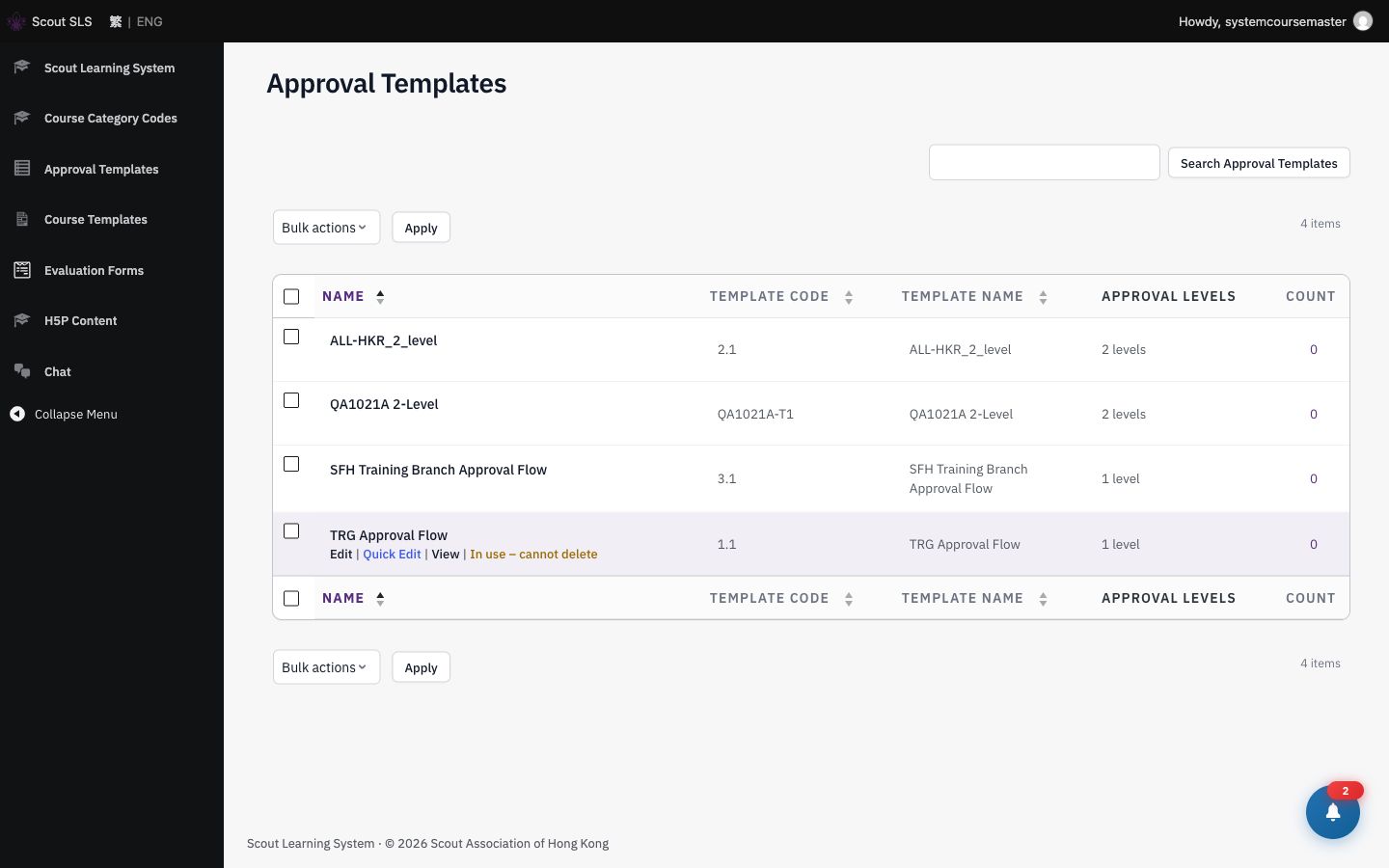
“In use – cannot delete”
Stage 02 · Create

Create the coursewp-admin → Courses → Add New

ACCA01 System Course Master
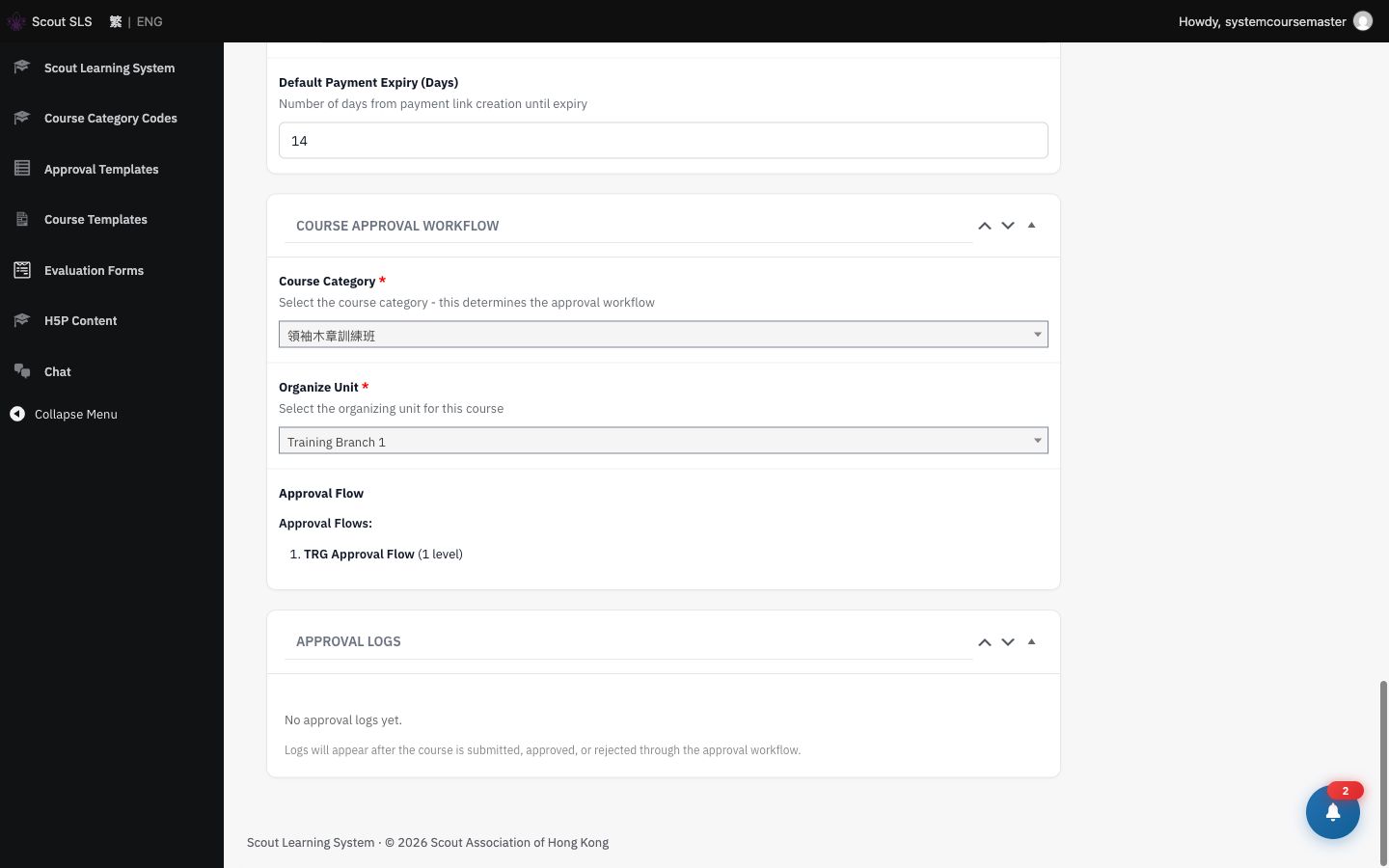
  1. 訓練班審批流程 box: category 領袖木章訓練班, unit Training Branch 1. It shows “TRG Approval Flow (1 level)”.
  2. Course Type: pick a template. Only that category's templates are listed, and name, code and targets fill in.
  3. 基本資料: year, organiser, language, mode, fee 0. Turn on 有截止報名日期: enrolment from today, deadline before the course start date, capacity 2, waitlist 1.
  4. Course Leaders box: add 2025500089 (SULK01) and 2025500071 (SULN01). Names fill in from SMIS.
  5. Settings: Manual Approval on, Invited Course = Yes (Yes means open to the public). Then Save Draft.

Show

  • Type 9999999999 as a Scout ID: “Scout ID not found in SMIS system”, and the field clears.
  • As SULN01, try Submit for Approval early: it lists the missing required fields.
Stage 02 · Screens

Creating course 8357

Approval workflow box: TRG Approval Flow (1 level)
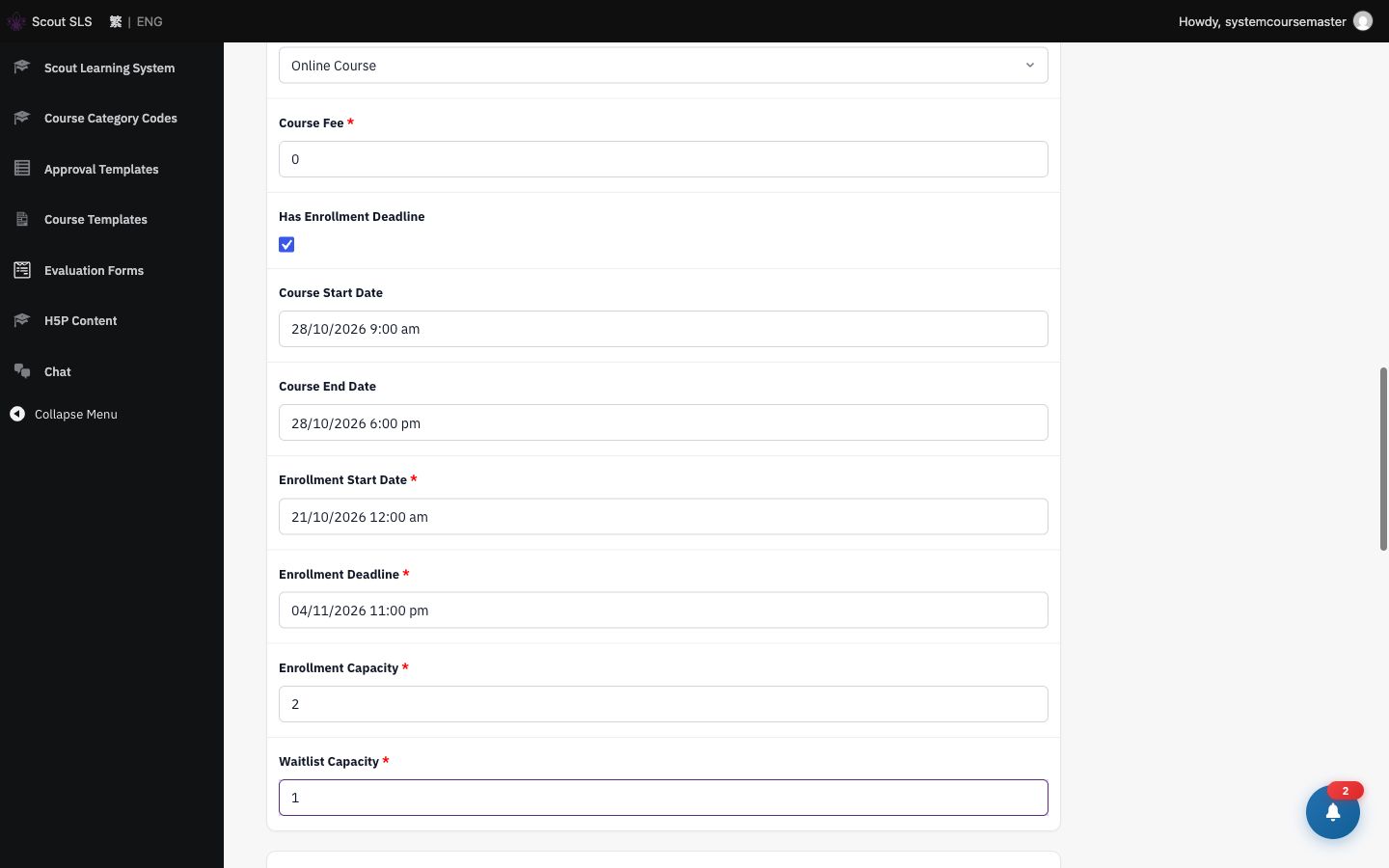
Fee 0 · deadline · capacity 2 · waitlist 1
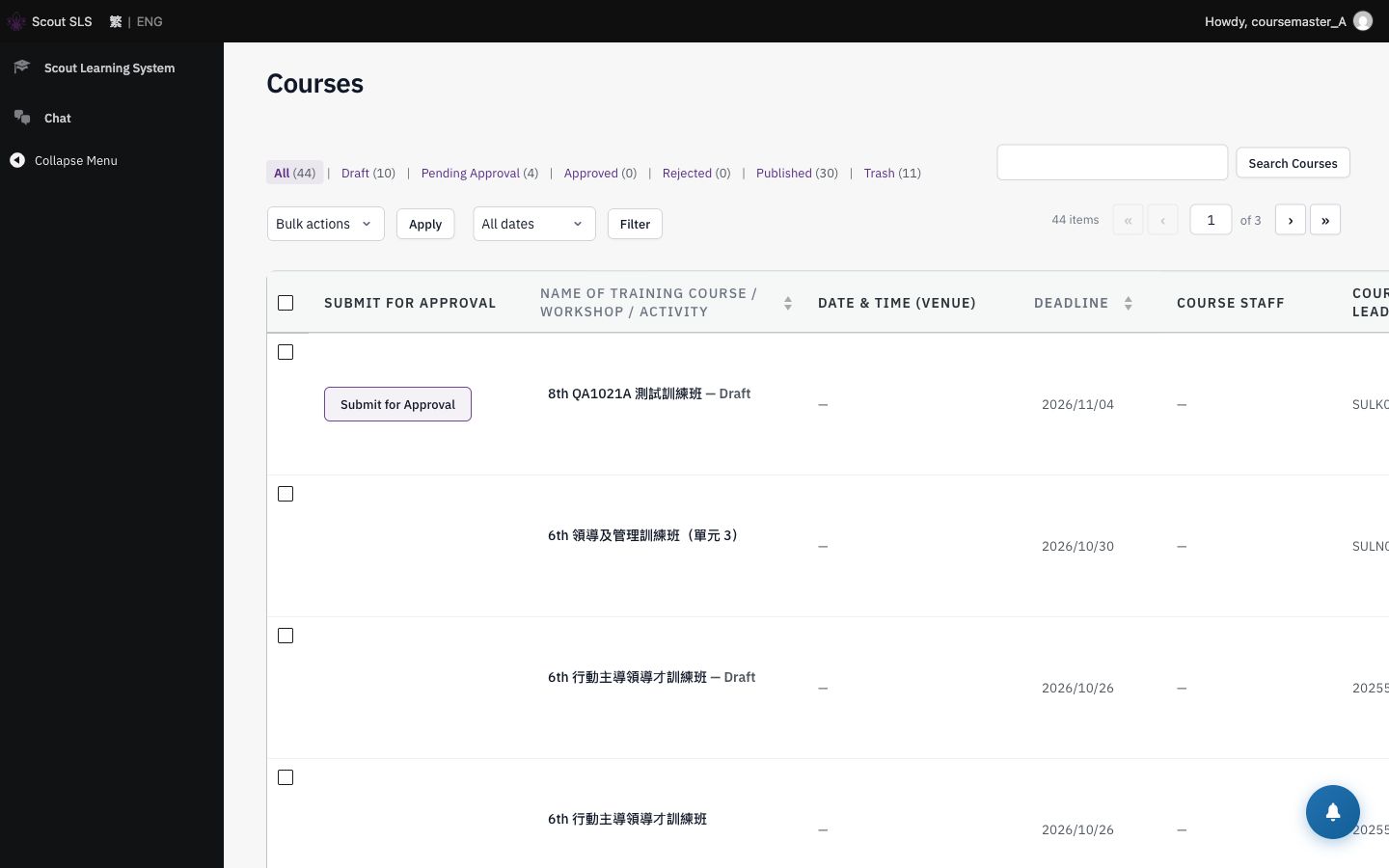
Submit too early → required fields listed
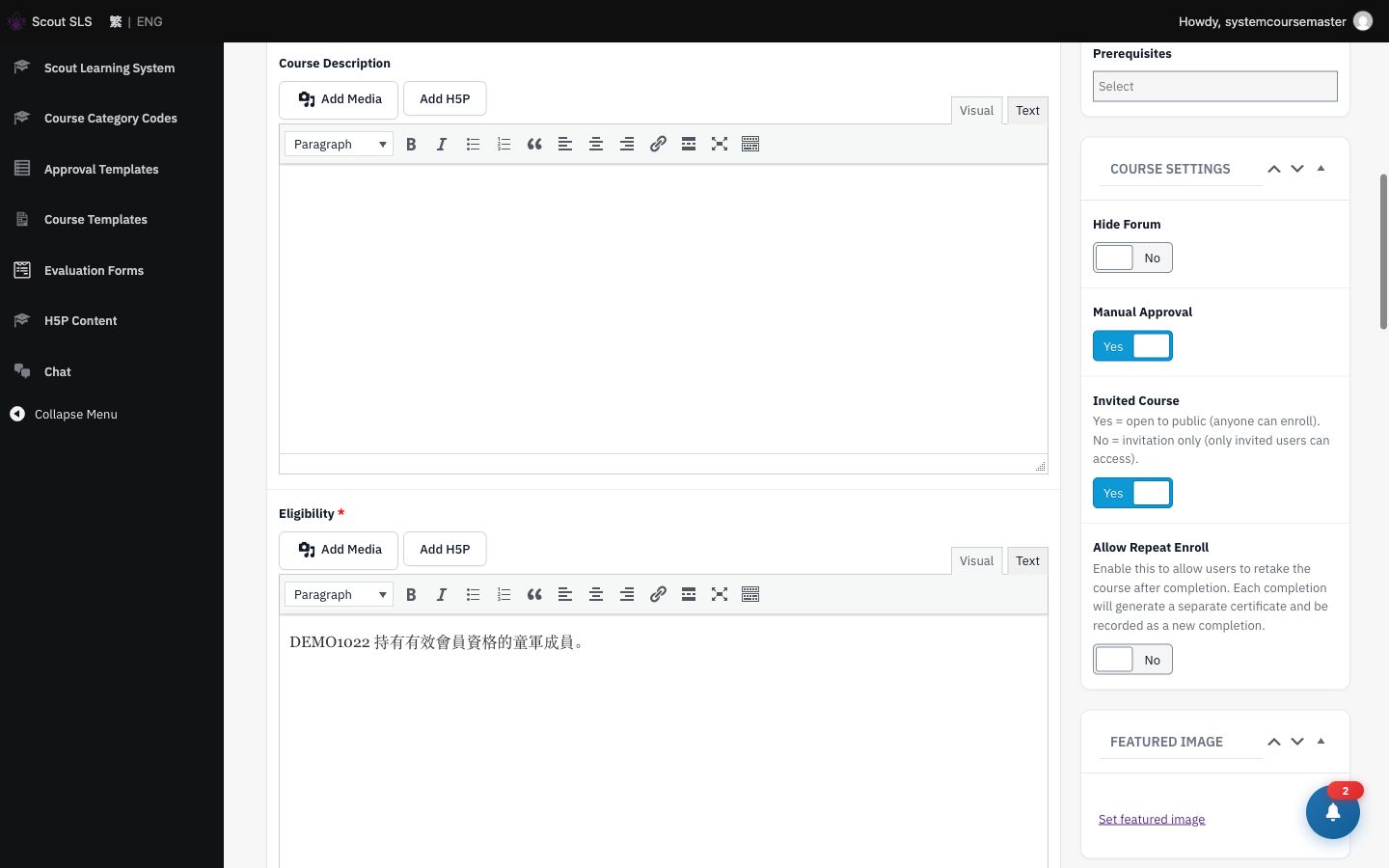
Manual Approval · Invited Course = Yes
Stage 03 · Build

Build the contentCourse builder · /user-account/edit-course/{course-id}/curriculum/

SULN01 Course Master
  1. Section 1 如何完成本網上自學課程, with one text lesson.
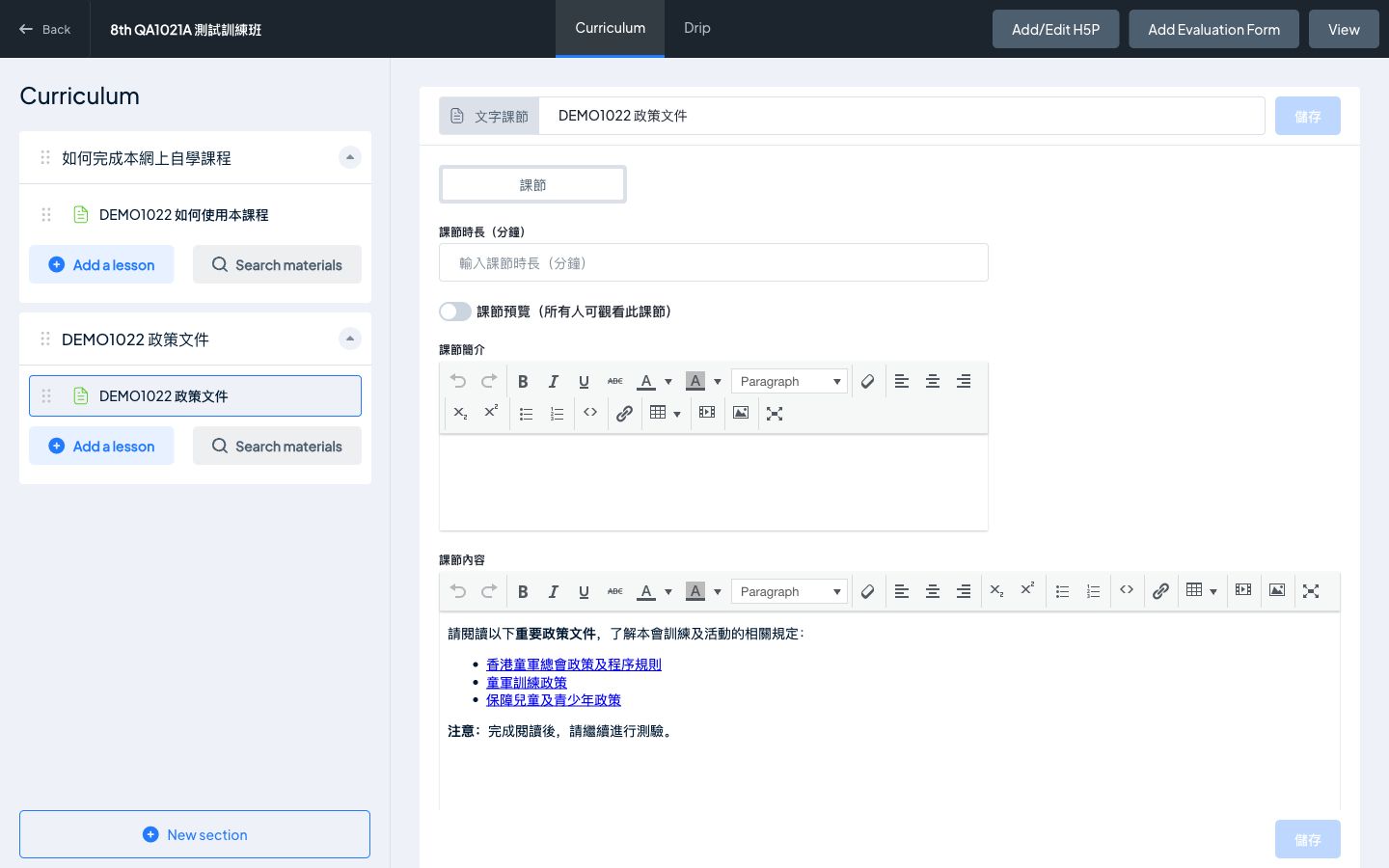
  2. Section 2 with a content lesson: a bulleted list of policy links and bold text. The editor's Paragraph, Table and Link menus all open properly.
  3. Lesson materials → Browse files: select several files at once (up to 100 MB each). “上載中 2 / 3…”.
  4. Optional: Add/Edit H5P opens the H5P editor.

Show

  • Only the Curriculum and Drip tabs. No FAQ, Notice or Q&A.
  • The Media Gallery only lists files you uploaded.
Stage 03 · Screens

Building the content

Builder: Curriculum & Drip tabs, lesson with list and bold
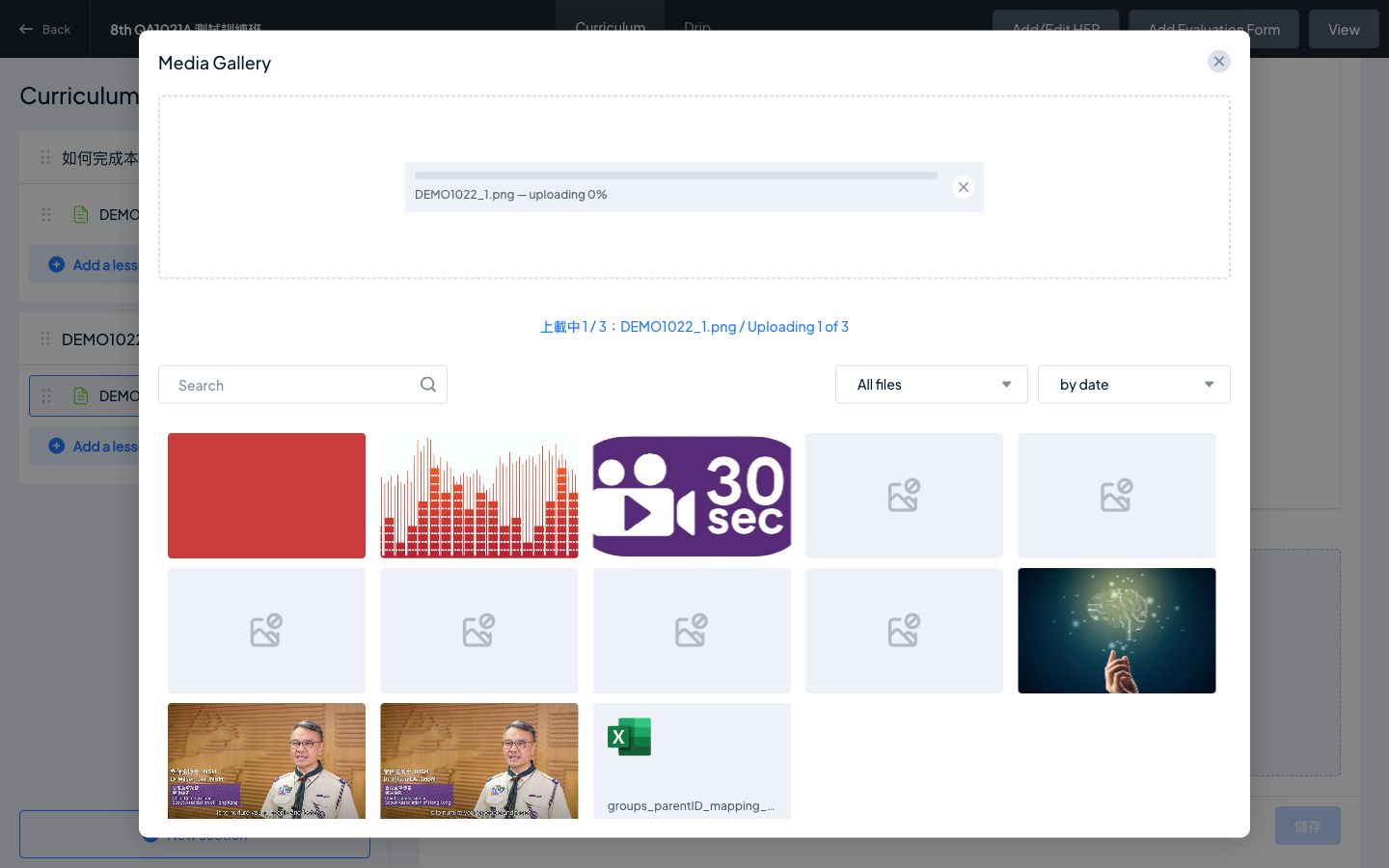
“上載中 1 / 3” multi-file upload
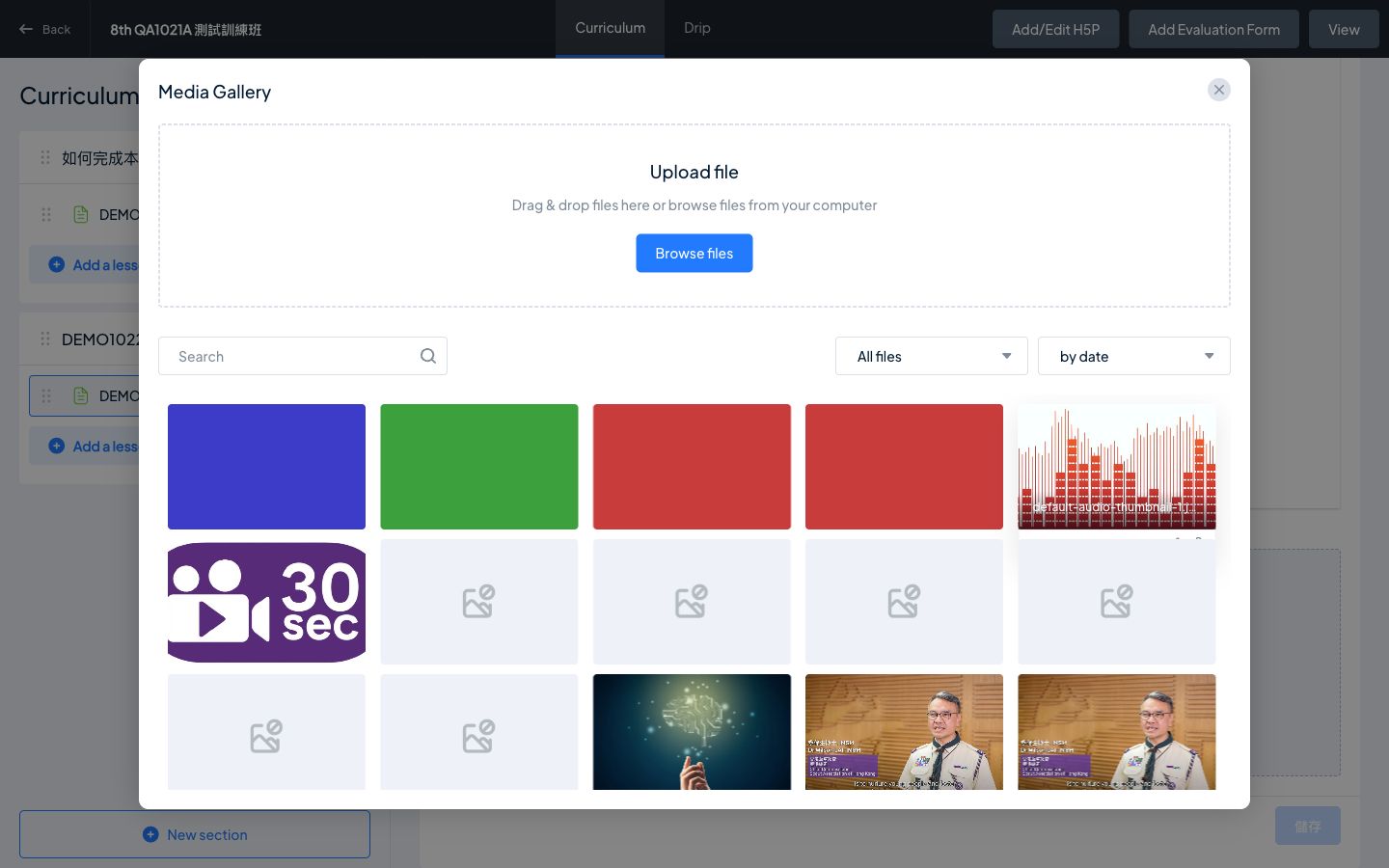
Gallery after uploading 3 files
Stage 03 · Quiz

Quiz with controlled answer order

SULN01 Course Master
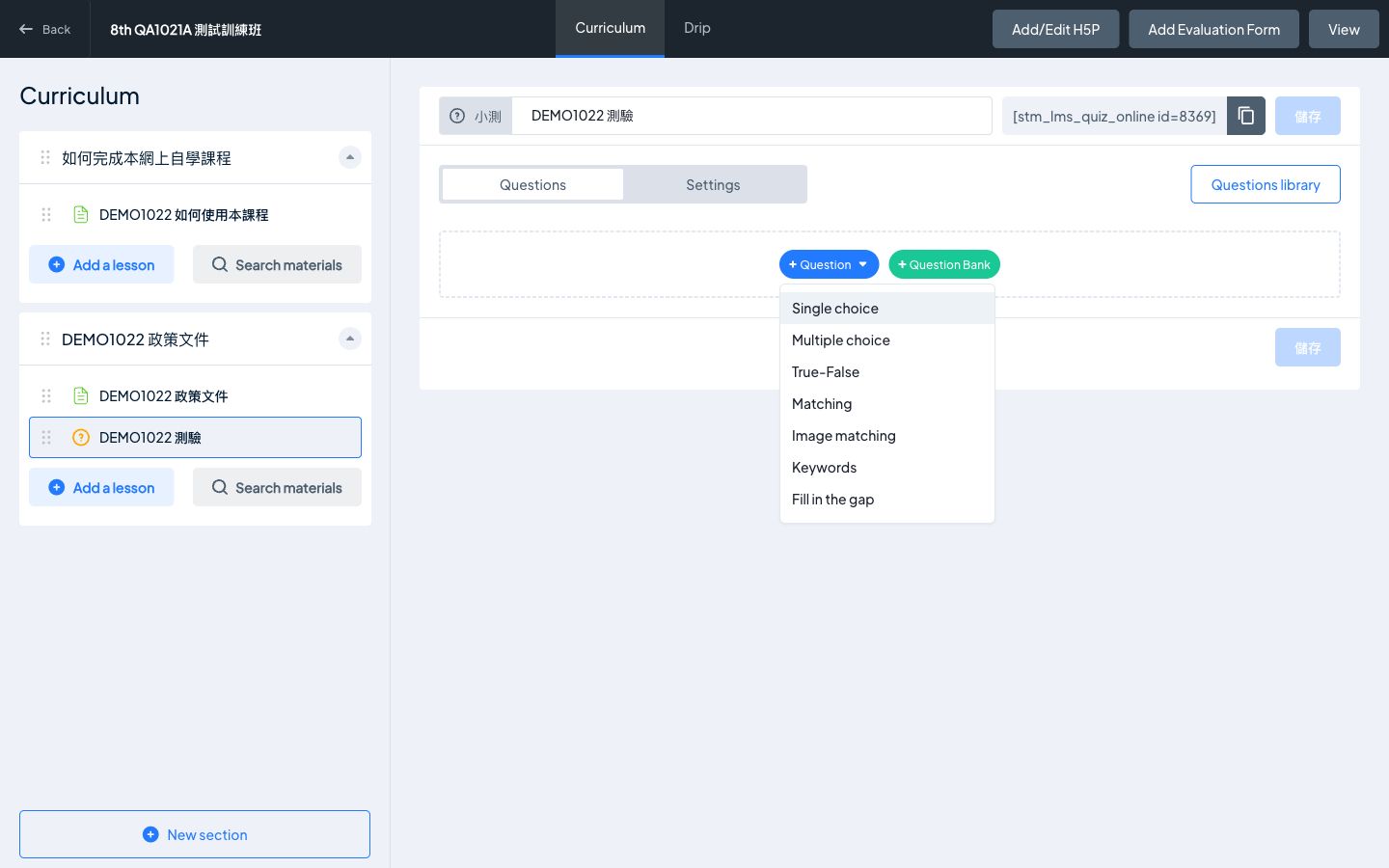
  1. Add a quiz. + Question → Single choice; the menu opens next to the button.
  2. Question text can be formatted: <b>活動A</b><br>… shows bold and line breaks.
  3. Answers: 活動A, 活動B, 以上皆是. Untick “隨機排列答案 / Shuffle answers” so “以上皆是” stays last.
  4. Add a second single-choice question and leave shuffle on. Add a True/False question; it never shuffles.
  5. Add a category with Category → +; course masters can now do this.

Show

  • Grading still checks the right answer whatever the order.
  • Shuffling is set per question, and the setting follows the question if it's reused.
Stage 03 · Screens

Building the quiz

“+ Question” menu opens by the button
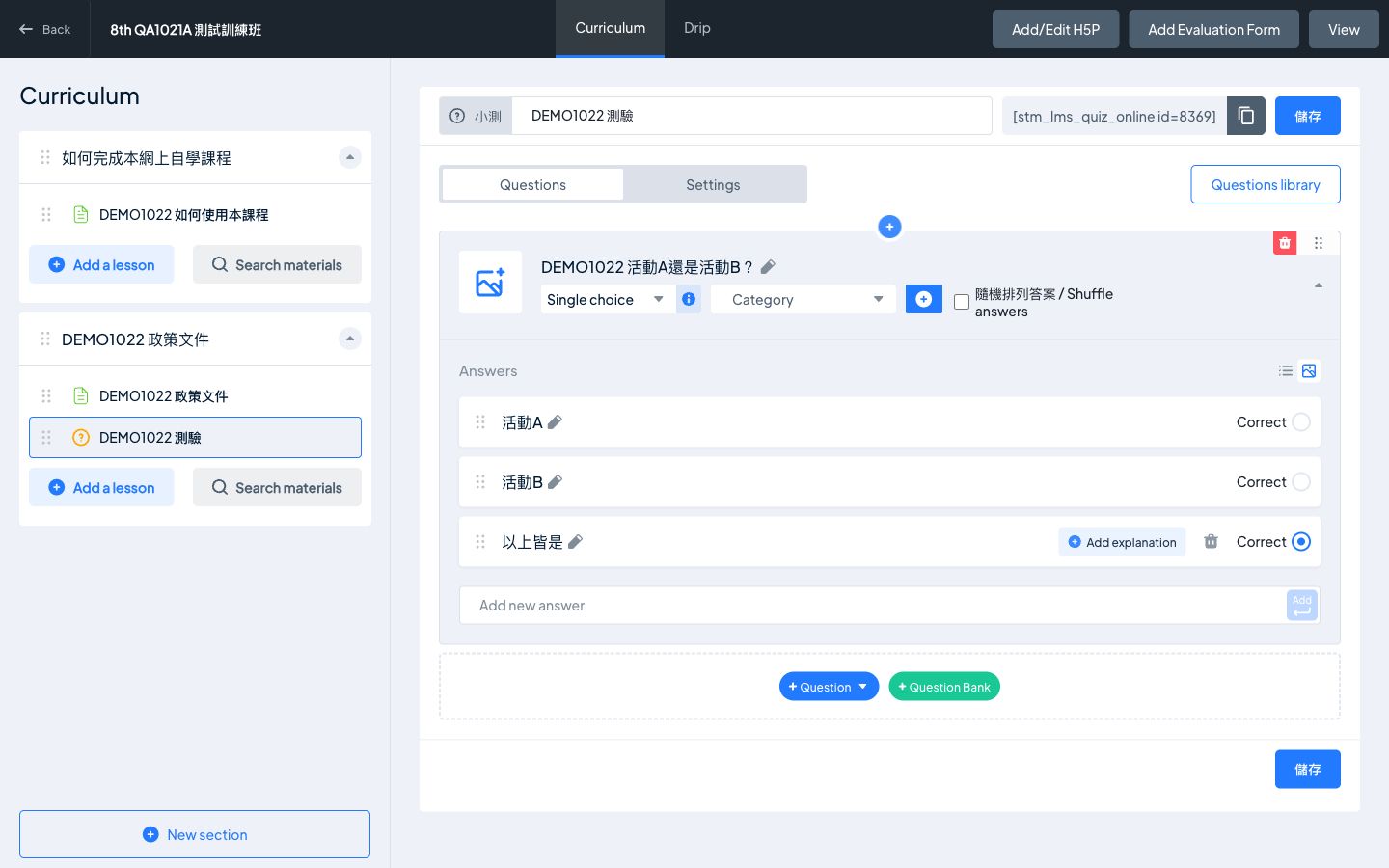
以上皆是 kept last: Shuffle answers unticked
Stage 03 · Evaluation & drip

Evaluation form and unlocking order

SULN01 Course Master
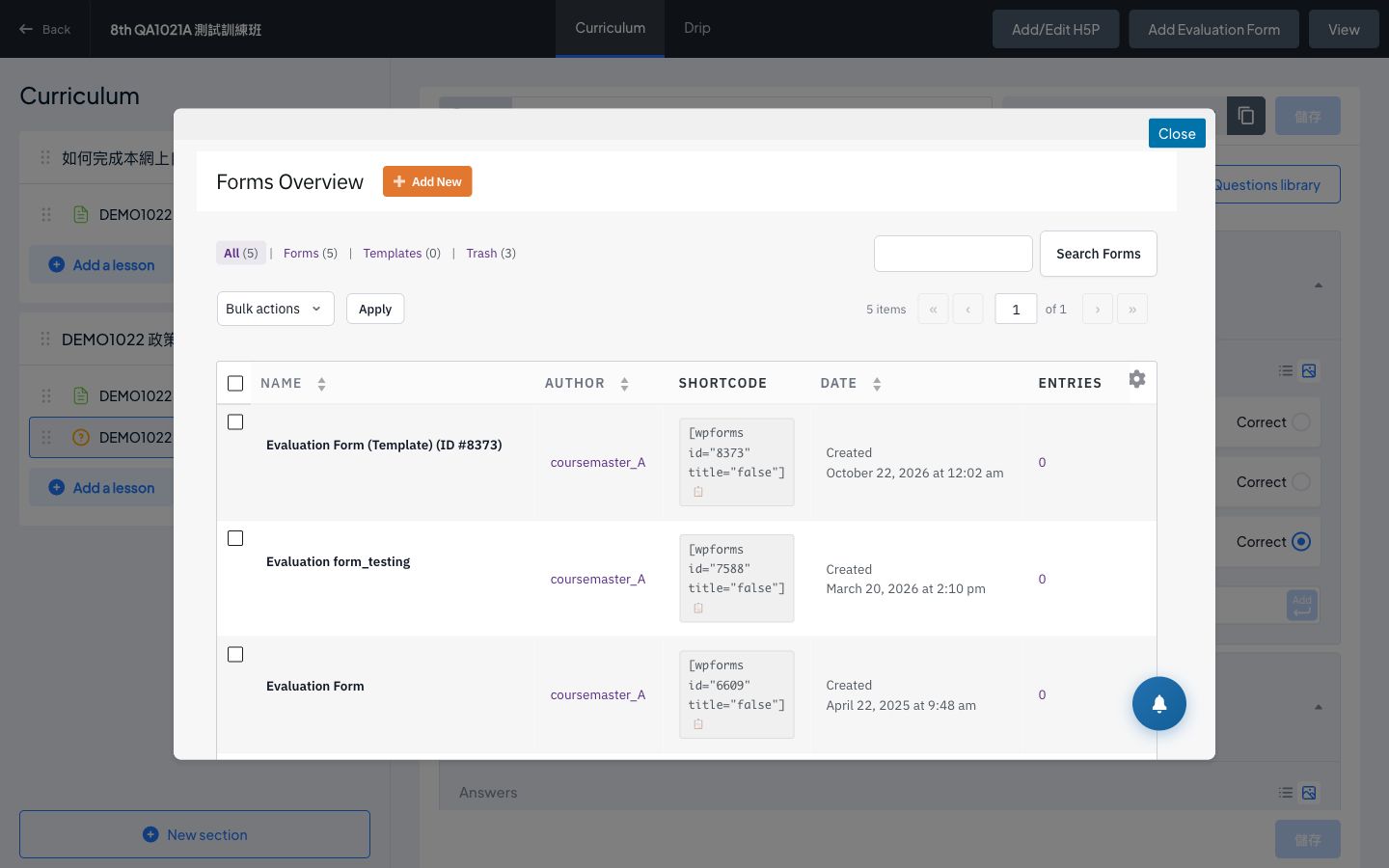
  1. Add Evaluation Form → duplicate Evaluation Form (Template), then copy its shortcode.
  2. Paste [wpforms id="…"] into the last lesson (any lesson works).
  3. Open the Drip tab → Section Mode: Section 1 = Sequential, all other sections = Free.

What this gives learners

  • They must finish “如何完成本網上自學課程” first.
  • After that, every other section opens, in any order.
  • The evaluation lesson completes only when the form is submitted, once per learner.
Stage 03 · Screens

Evaluation form and drip

Copy of the evaluation template + shortcode
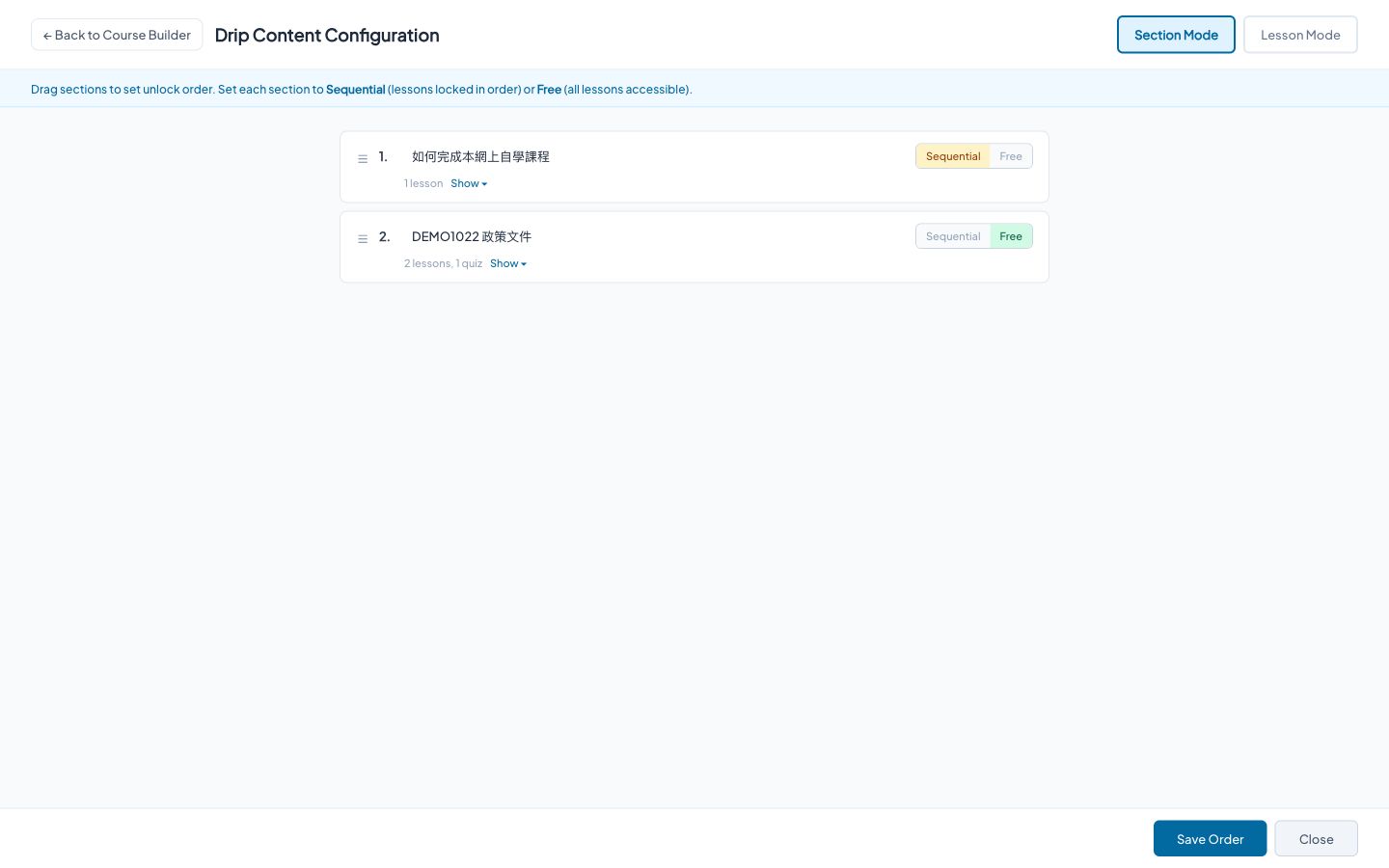
Drip: Section 1 Sequential, Section 2 Free
Stage 04 · Approve

Submit and approve

SULN01 / ACCA01 submitSULE01 Approver
  1. As SULN01, in the wp-admin course list: Submit for Approval → “Notified 1 approver(s) for TRG Approval Flow (Level 1)”.
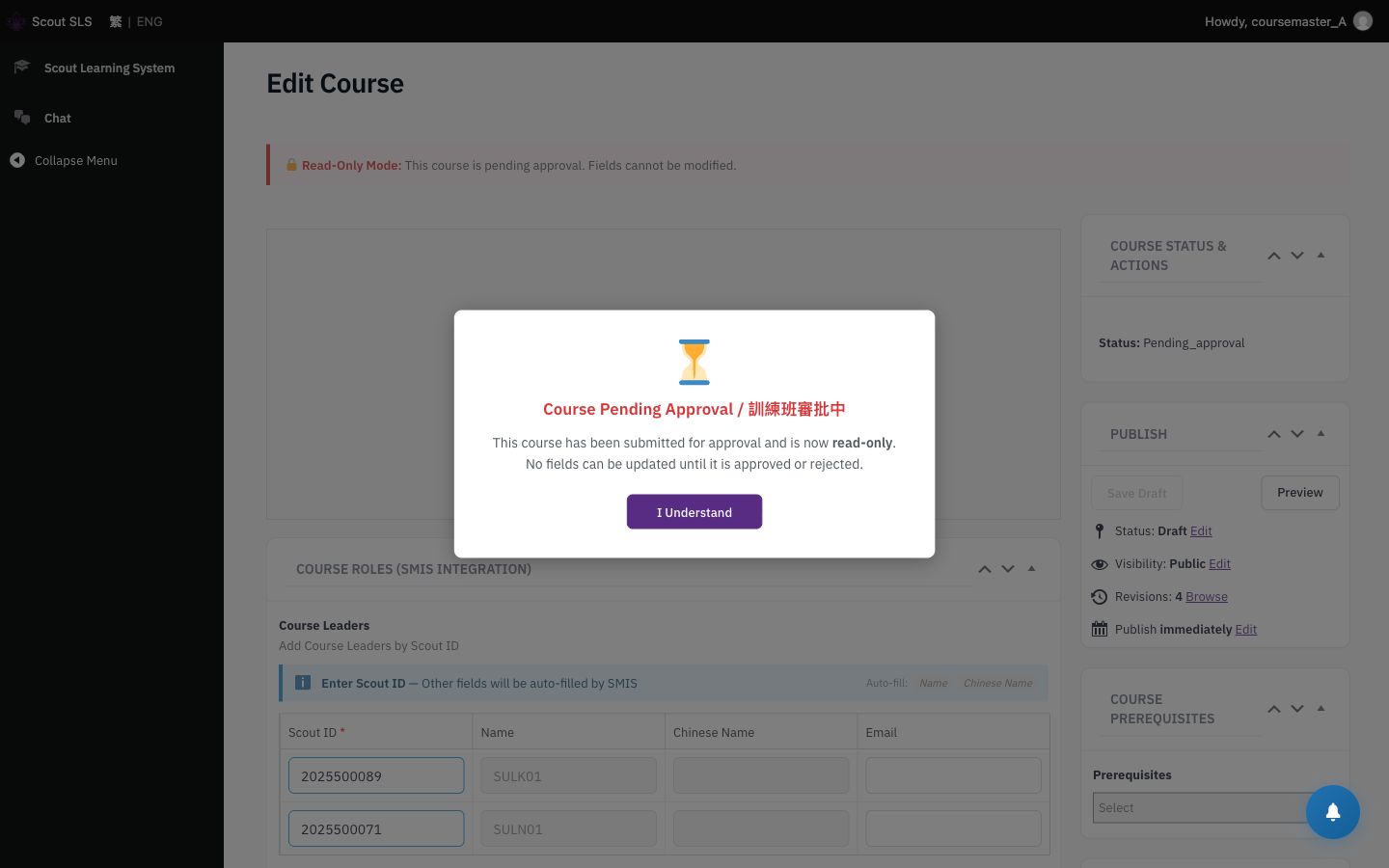
  2. Reopen the course as the course master: a “Course Pending Approval” overlay, and the fields are read-only.
  3. Course list: tabs 全部 / 待審批 / … with counts.
  4. Switch to SULE01: the bell shows “submitted for your approval”. Click Approve.
  5. The course is published, and the creator gets a “fully approved and published” notification.

Show

  • The Approval Logs box: Submit → Approve → workflow complete.
  • Reject works the same way, with a reason, and the course goes back to the creator.
Stage 04 · Screens

Submitting and approving

Pending approval: read-only for the course master
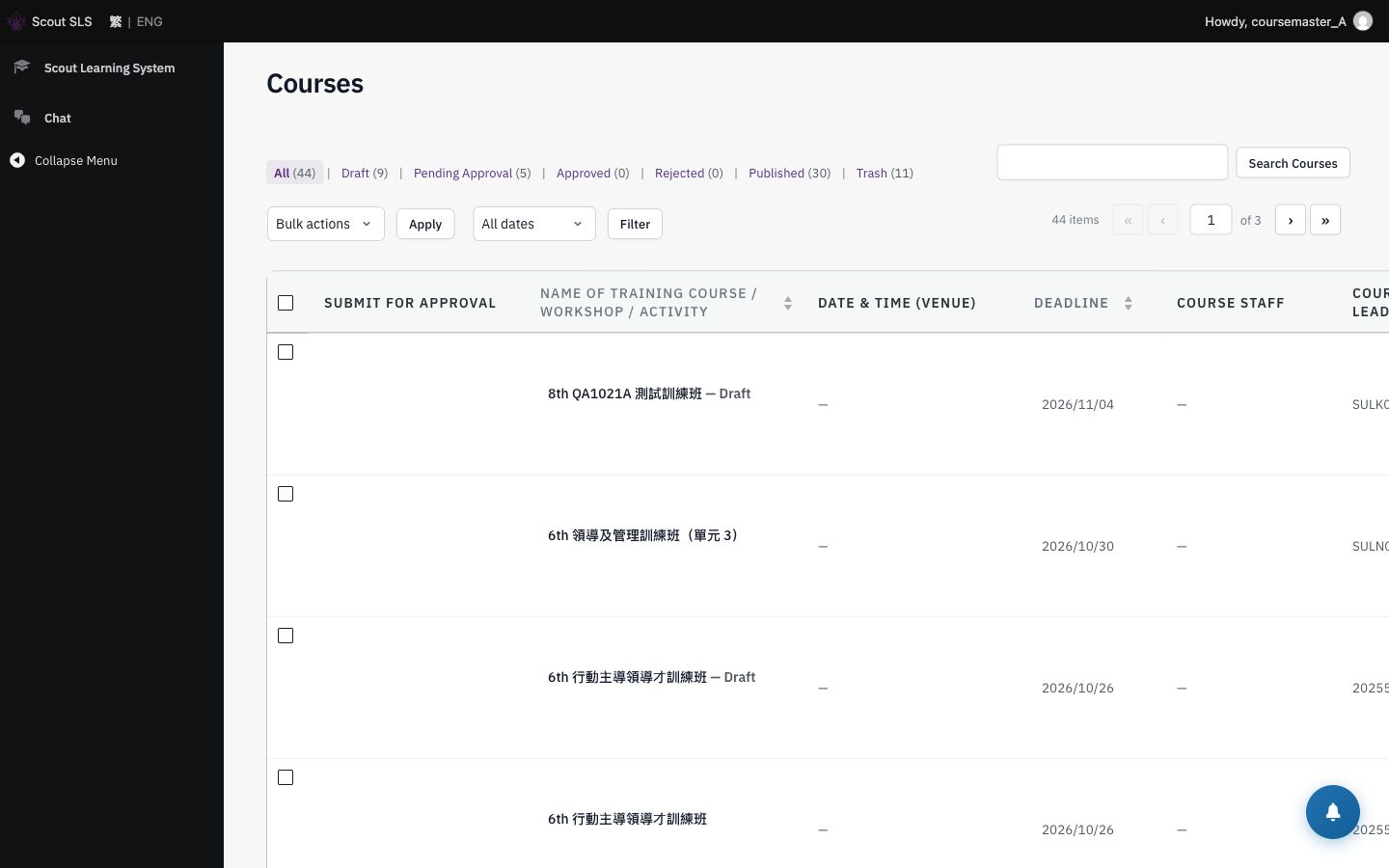
Course list tabs with counts
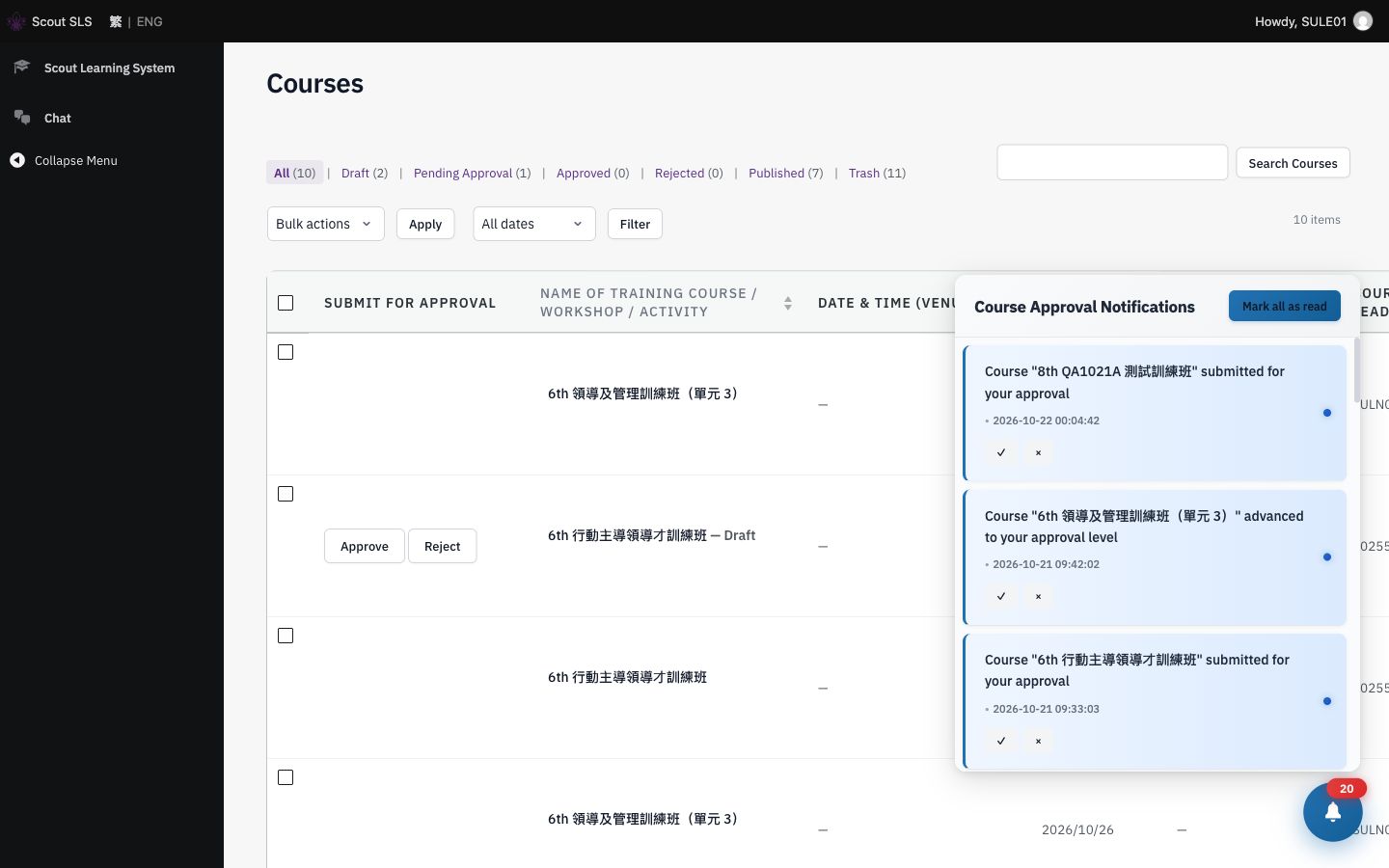
Approver SULE01: “submitted for your approval”
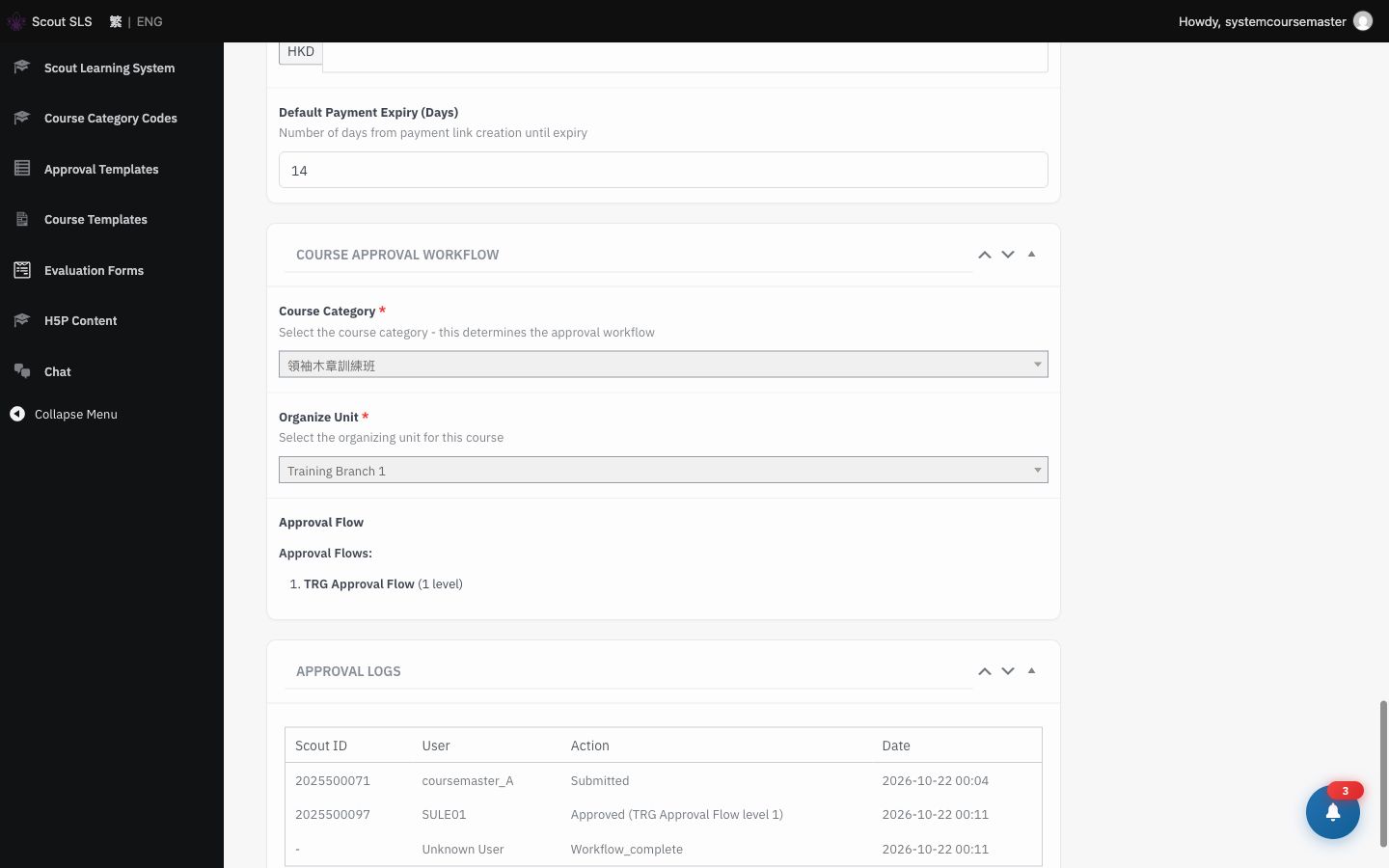
Approval log: Submitted → Approved → complete
Stage 05 · Enrol

Apply, review, enrol

SULH01 · SULD01 · SULD03 LearnersSULN01 reviews
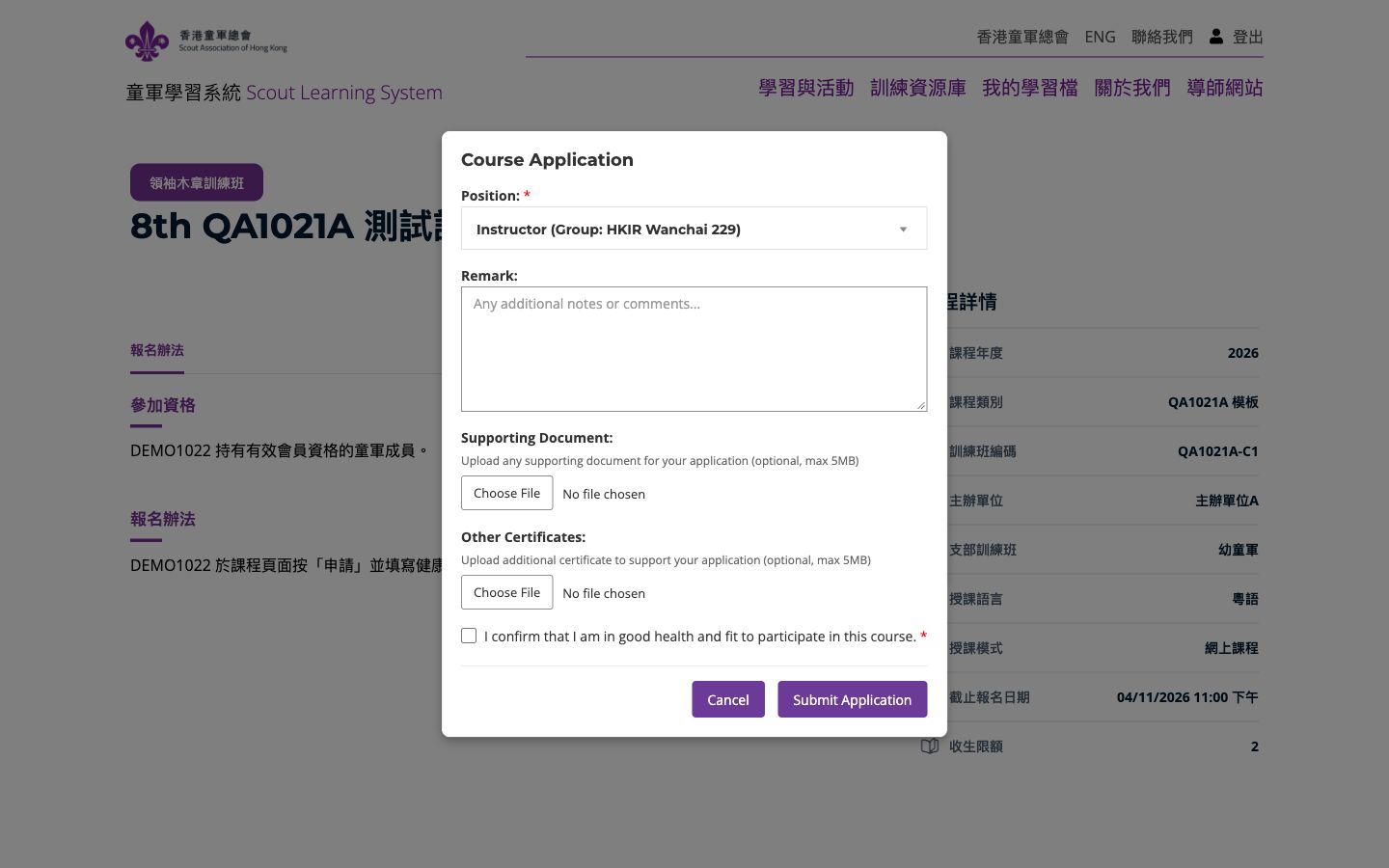
  1. Learner → 課程與活動 (/scout-courses/) → open the course → Apply: choose a position and tick the health declaration.
  2. Course master → Applications: Reviewed → Accept (with a message) → Approve enrols the learner.
  3. Approve SULH01 and SULD01. The course is now full: 2 / 2.
  4. SULD03 applies: the application shows a 後備 / Waitlist badge. Approve is refused with “Course is full (2/2)”.

Show

  • The application sidebar: “Enrolled: 2 / 2(Waitlist: 1)”.
  • A 4th person can't apply; the course shows as full.
Stage 05 · Screens

Applications and capacity

Learner applies: position, documents, health declaration
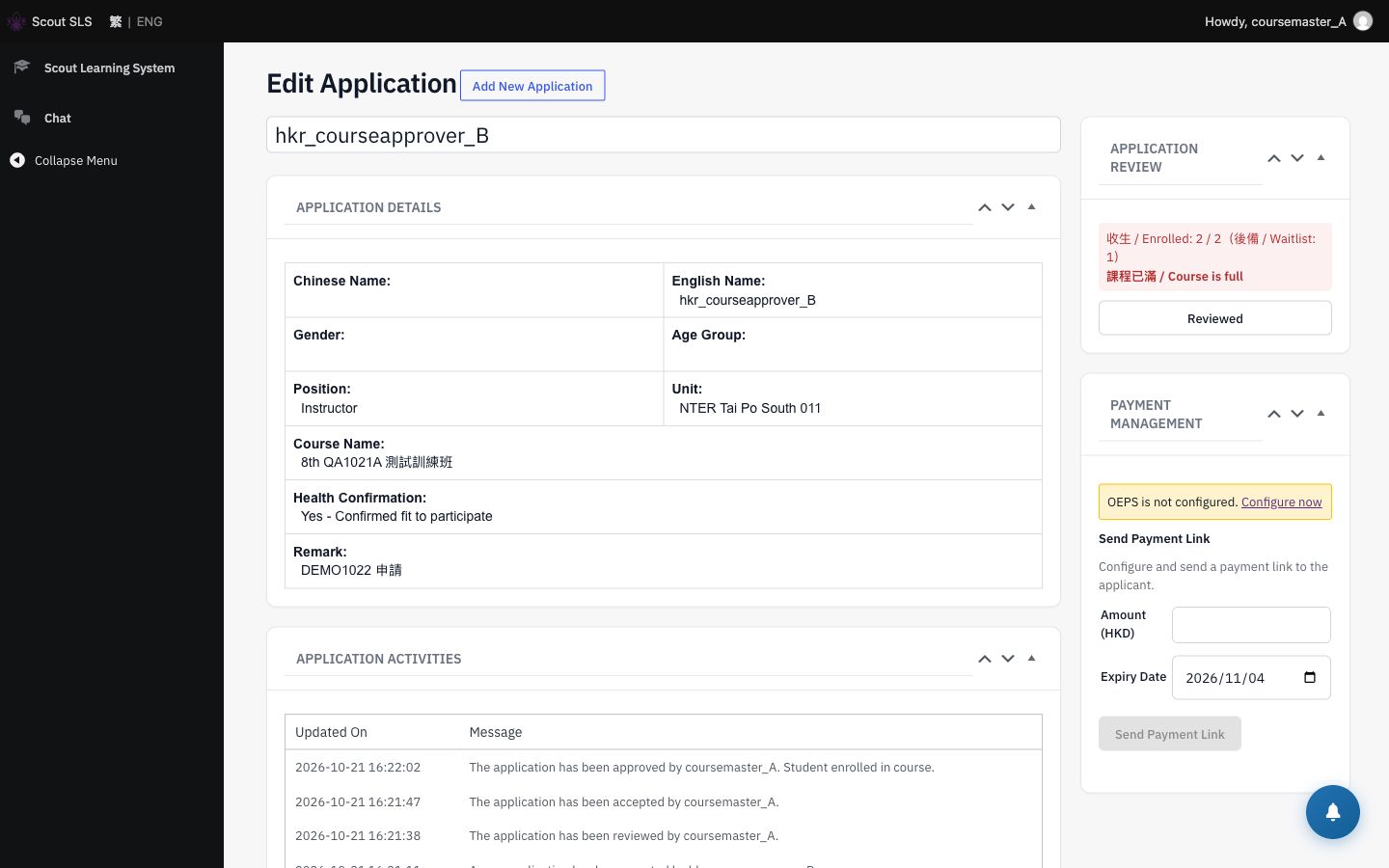
Approve: “Enrolled: 2 / 2”
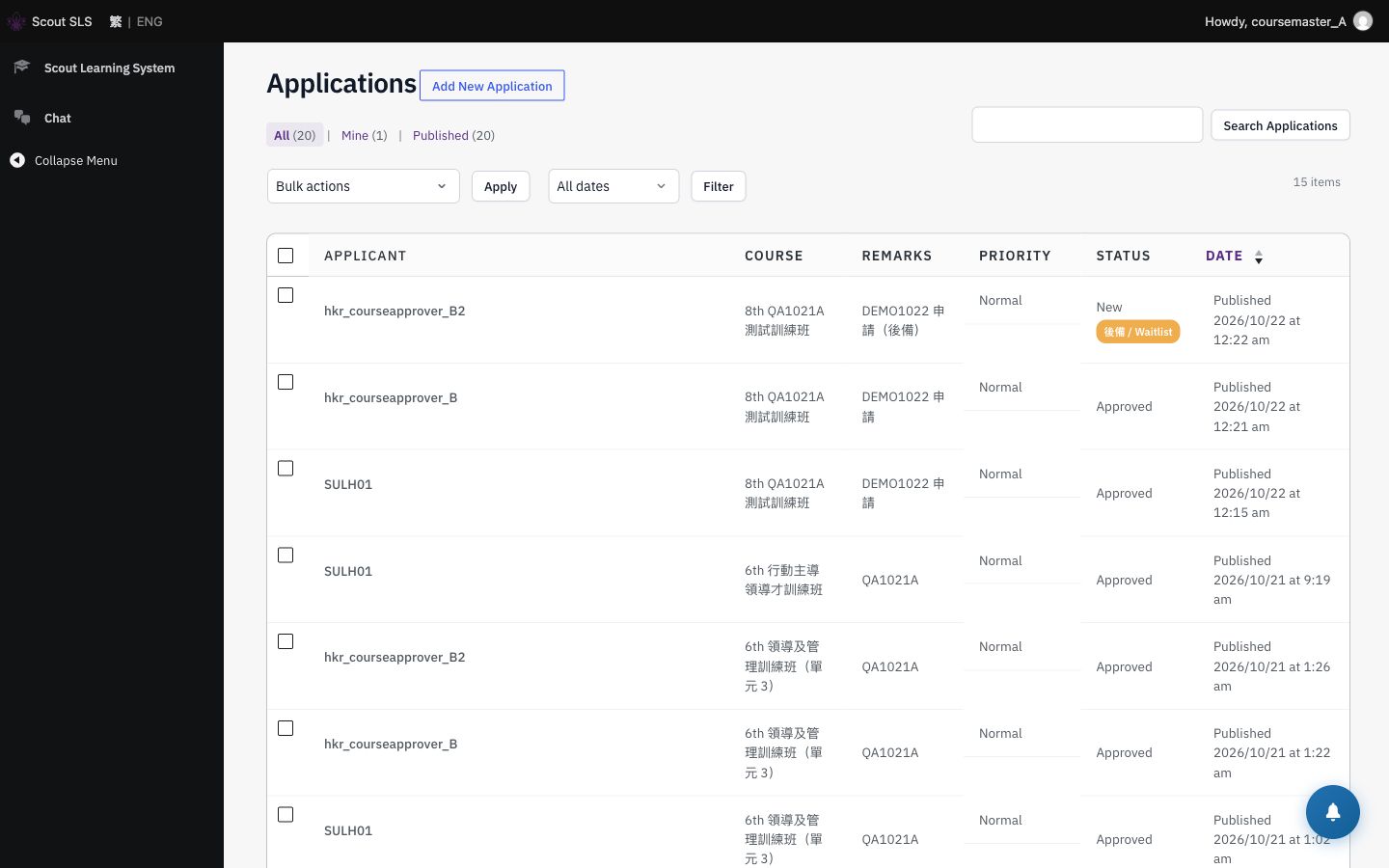
3rd applicant: 後備 / Waitlist badge
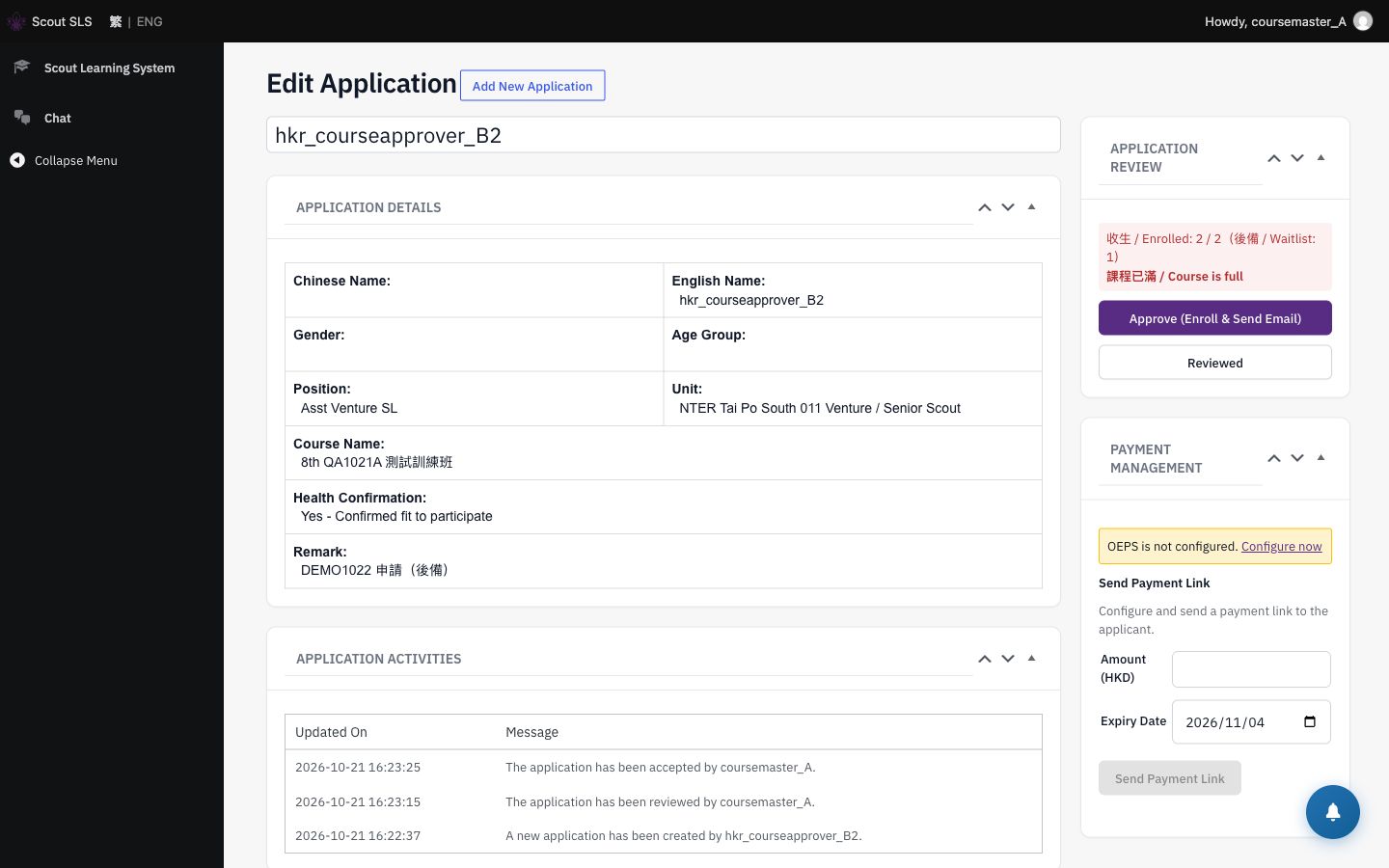
Approve refused: “Course is full (2/2)”
Stage 06 · Learn

The learner's course player

SULH01 Learner
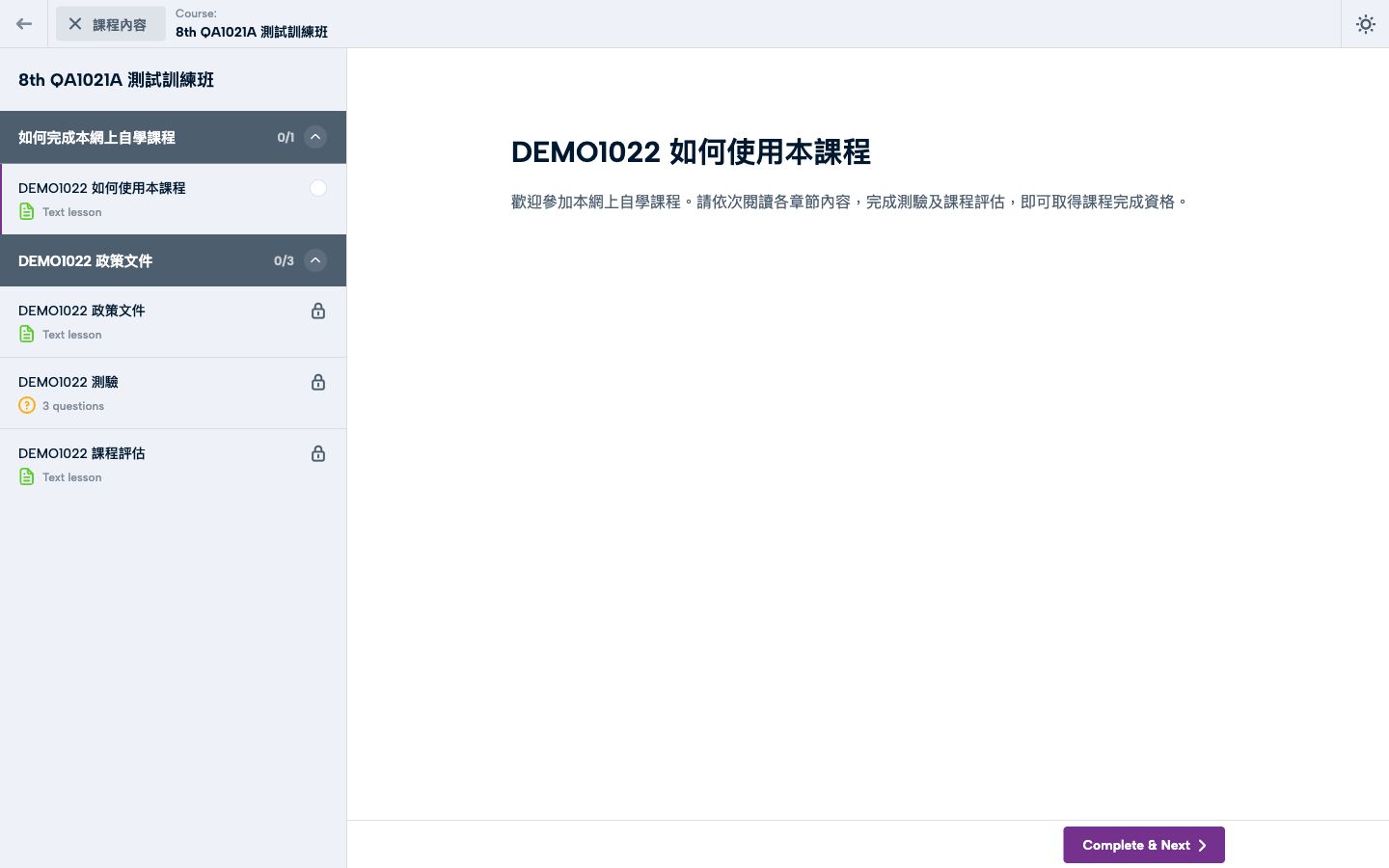
  1. 課程與活動 → 已報讀 → open the course → 開始課程.
  2. Only Section 1 is open. Complete it and every other section unlocks.
  3. Lesson: the list of policy links reads at full size, and the links open in a new tab.
  4. Quiz: the first question clears the header. Reload: the shuffled question changes order, while “以上皆是” and True/False stay put.
  5. Toggle dark mode: everything stays readable, including the form.

Show

  • No admin toolbar for learners.
  • Learners can't open the course builder or the old account pages; they're sent back to 課程與活動.
Stage 06 · Screens

In the course player

Only Section 1 open; Section 2 locked
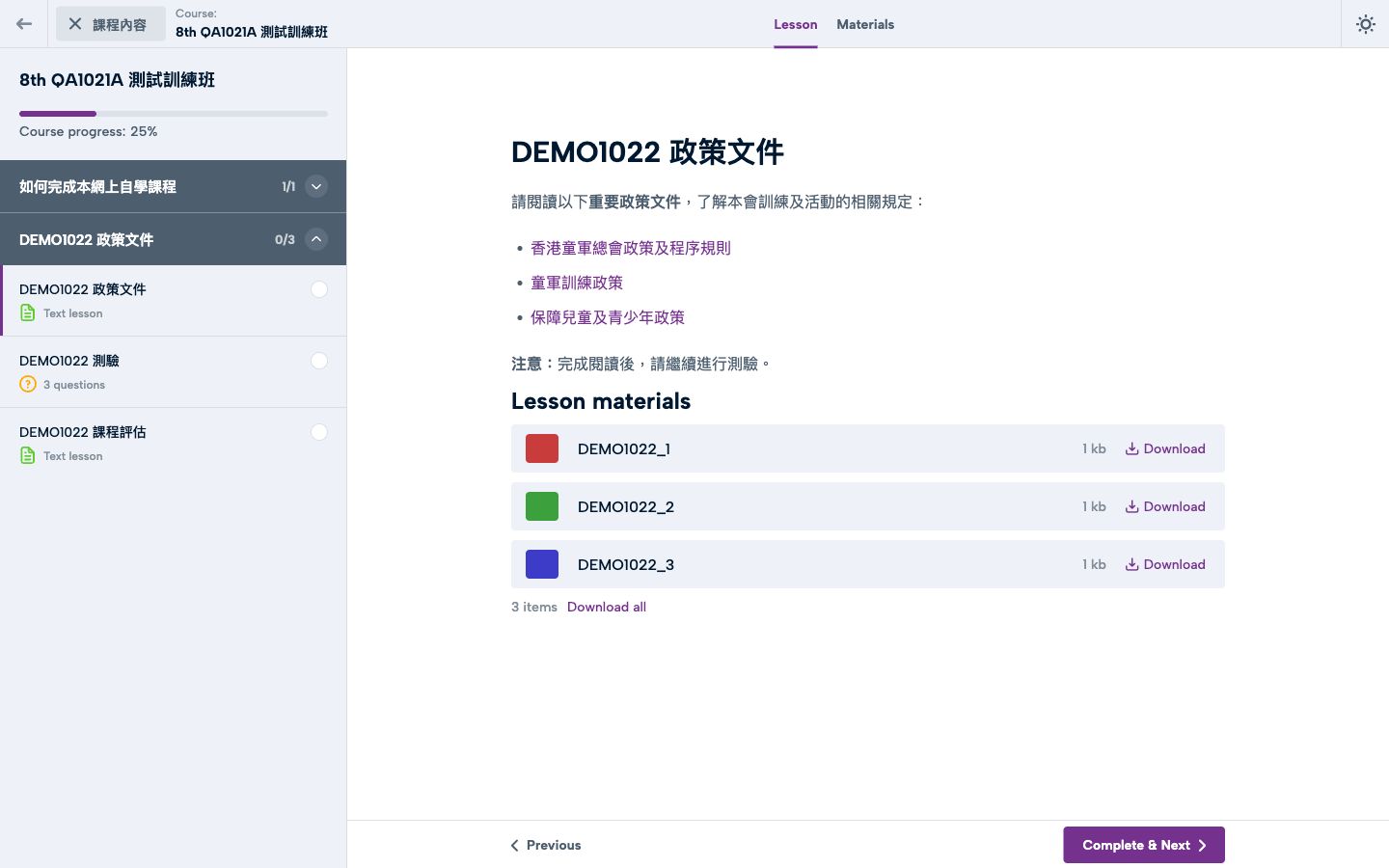
Policy lesson: list links, bold, 3 materials
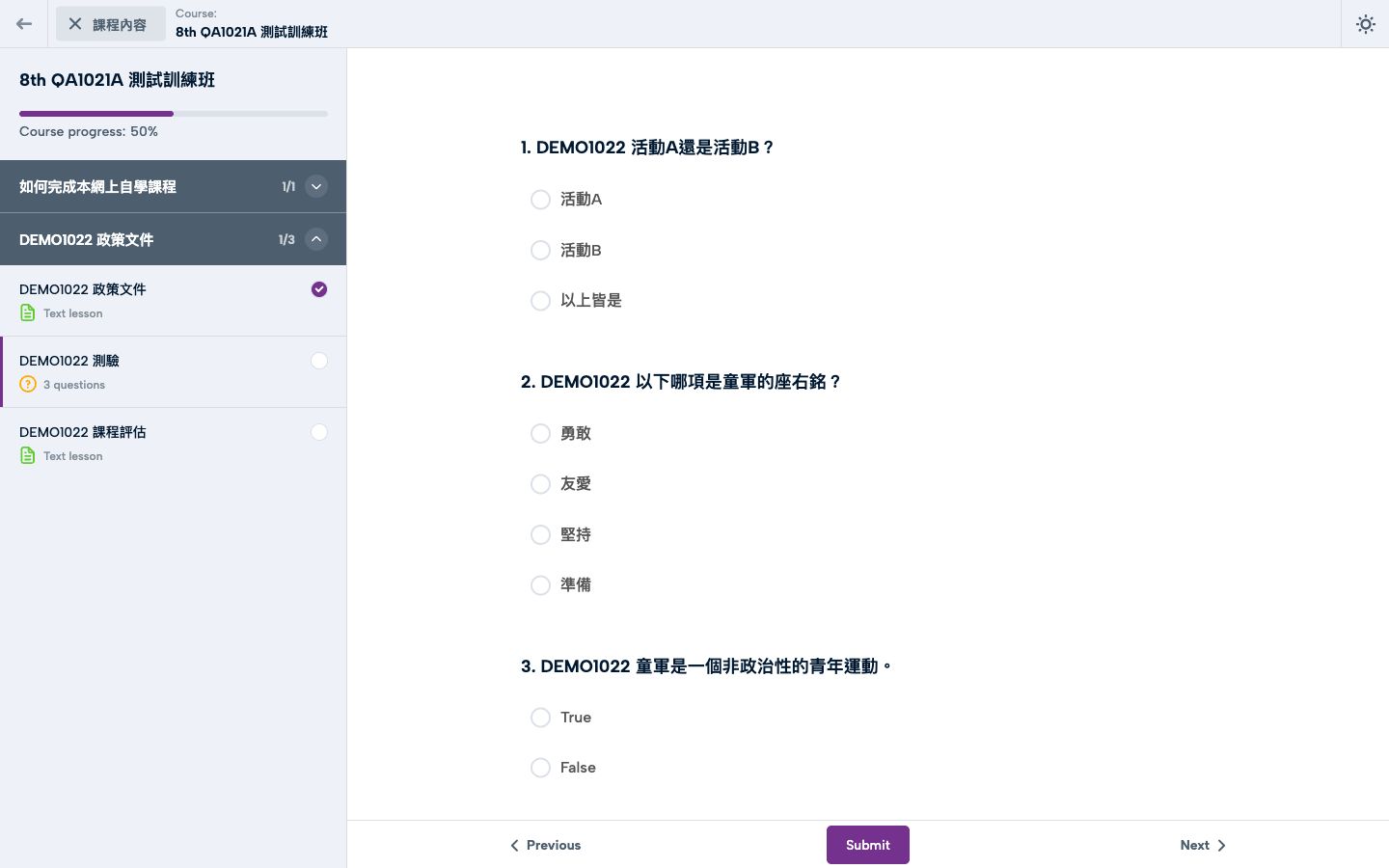
Quiz: Q1 fixed order, Q2 shuffled, Q3 True/False
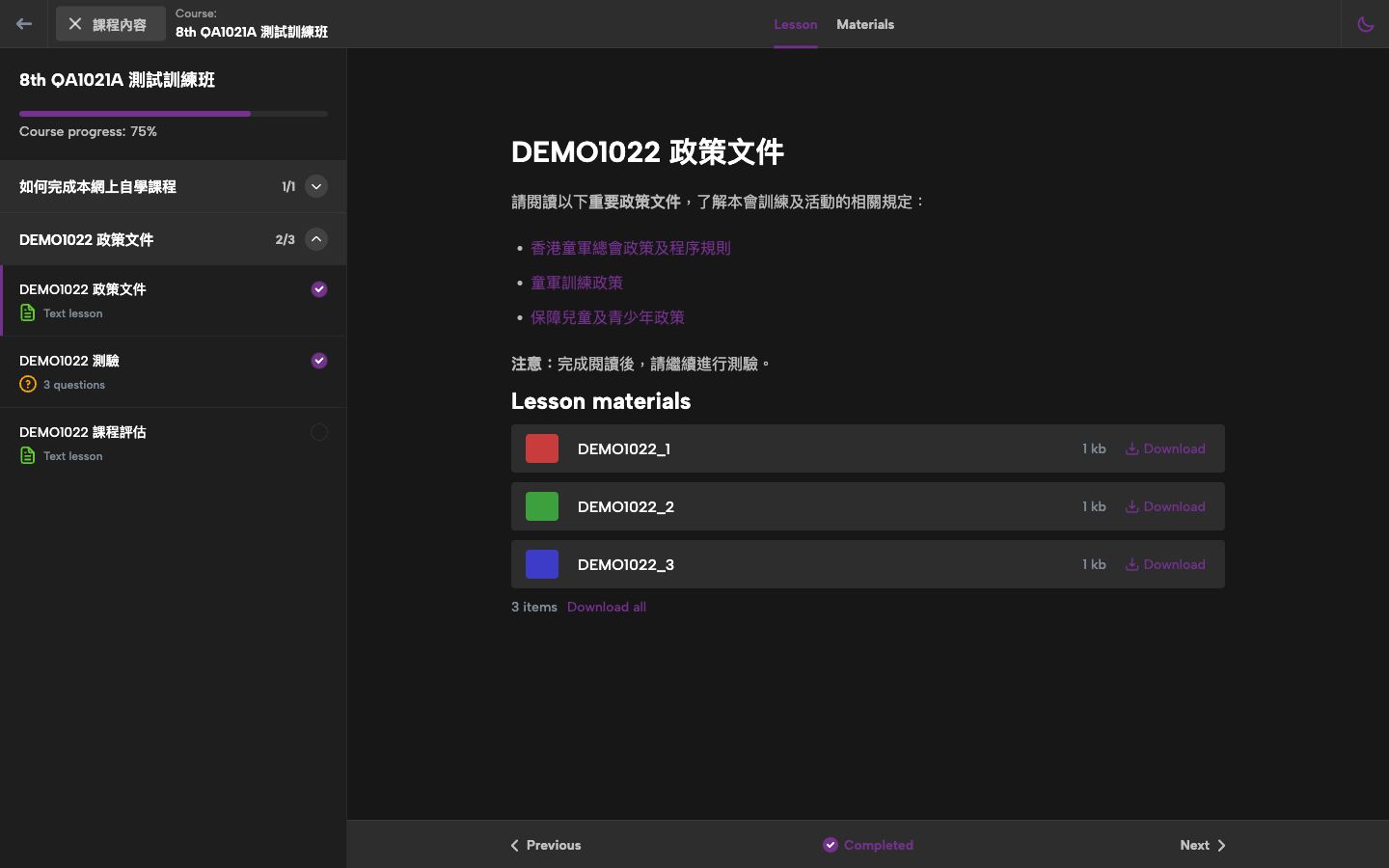
Dark mode
Dark mode
Stage 07 · Complete

Evaluate and complete

SULH01 Learner
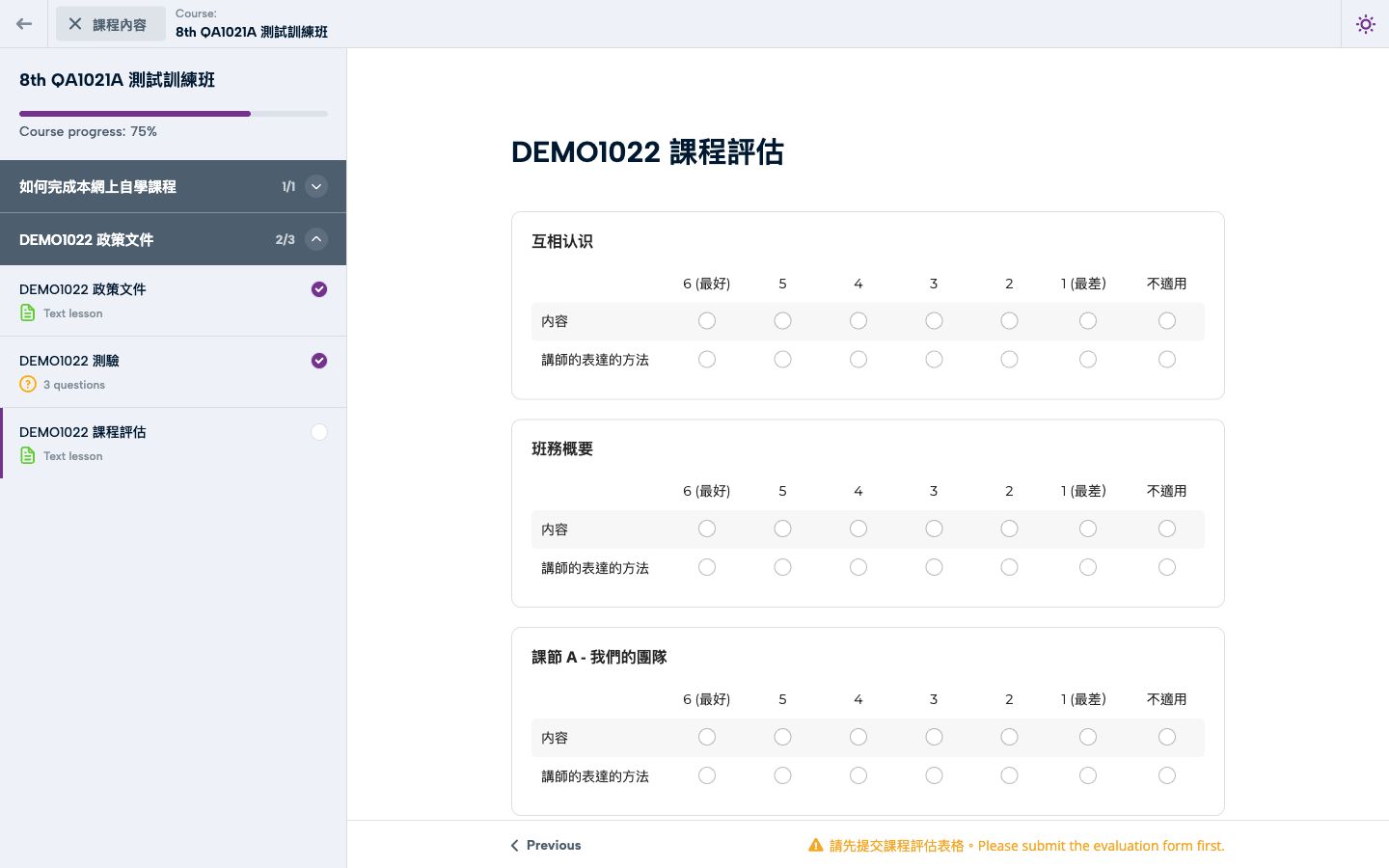
  1. Open the evaluation lesson: there's no Complete button yet, and “請先提交課程評估表格” shows.
  2. Fill in the form and submit: “感謝你提交課程評估。Thank you…”. The page reloads and the lesson is completed.
  3. Reload: the form is replaced by “你只可提交一次。You can only submit once.”
  4. Progress reaches 100%; 課程與活動 → 已完成.
  5. Course master: the progress report shows the evaluation answers.

Show

  • Each learner submits once; the next learner can still submit.
  • The certificate is issued when the course is complete.
Stage 07 · Screens

Evaluation and completion

No Complete button until the form is submitted
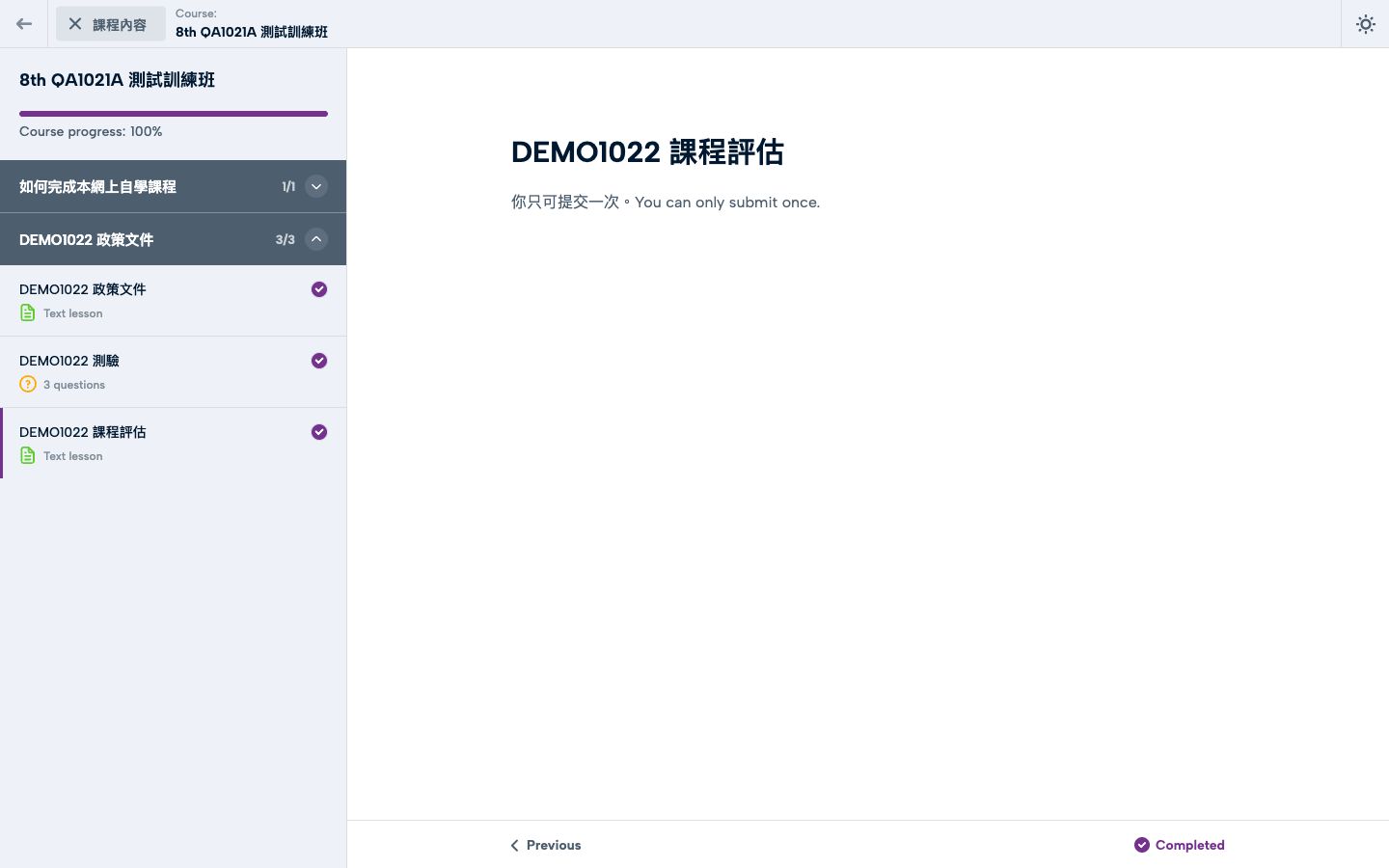
“你只可提交一次 / You can only submit once” · 100%
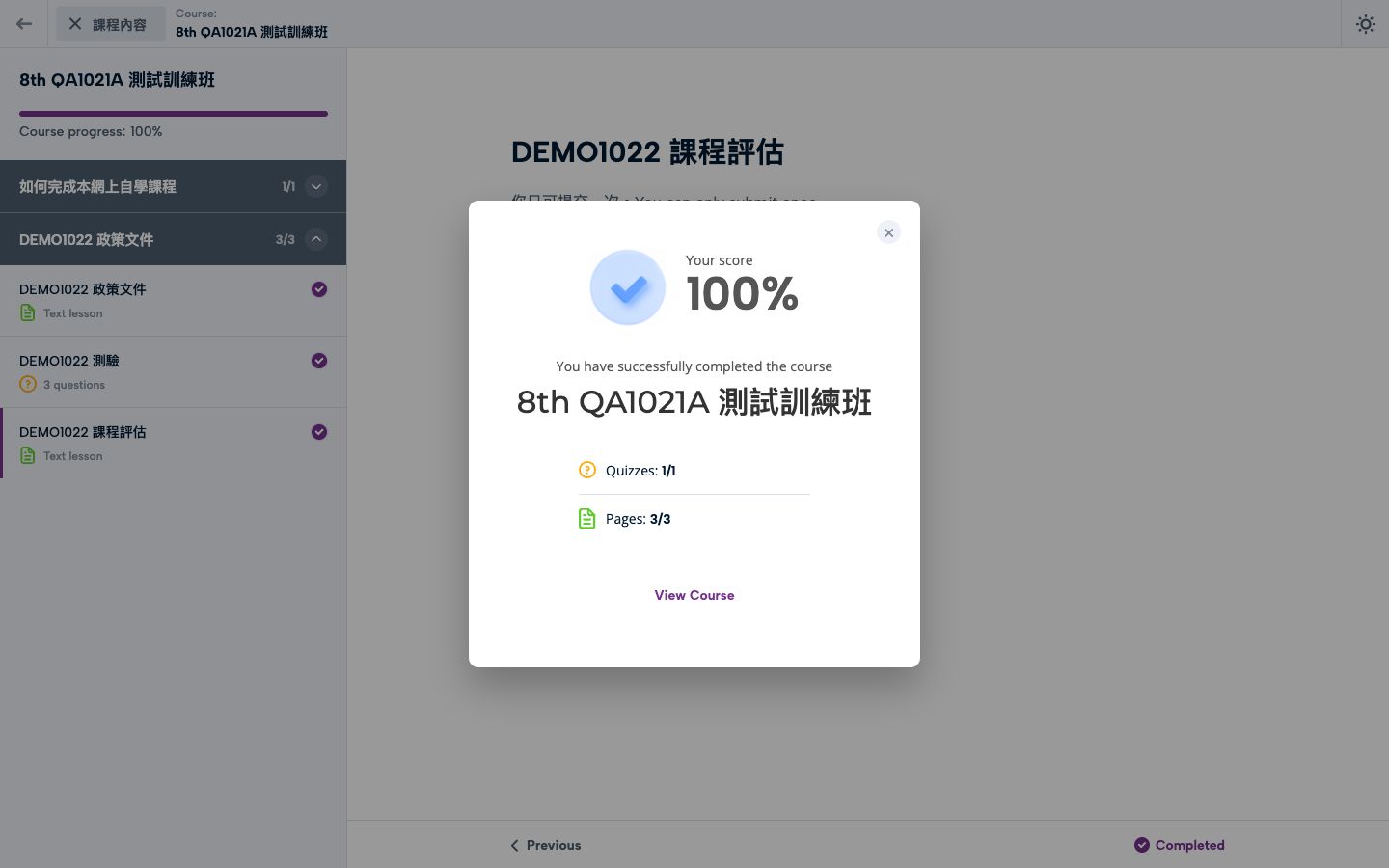
“You have successfully completed the course”
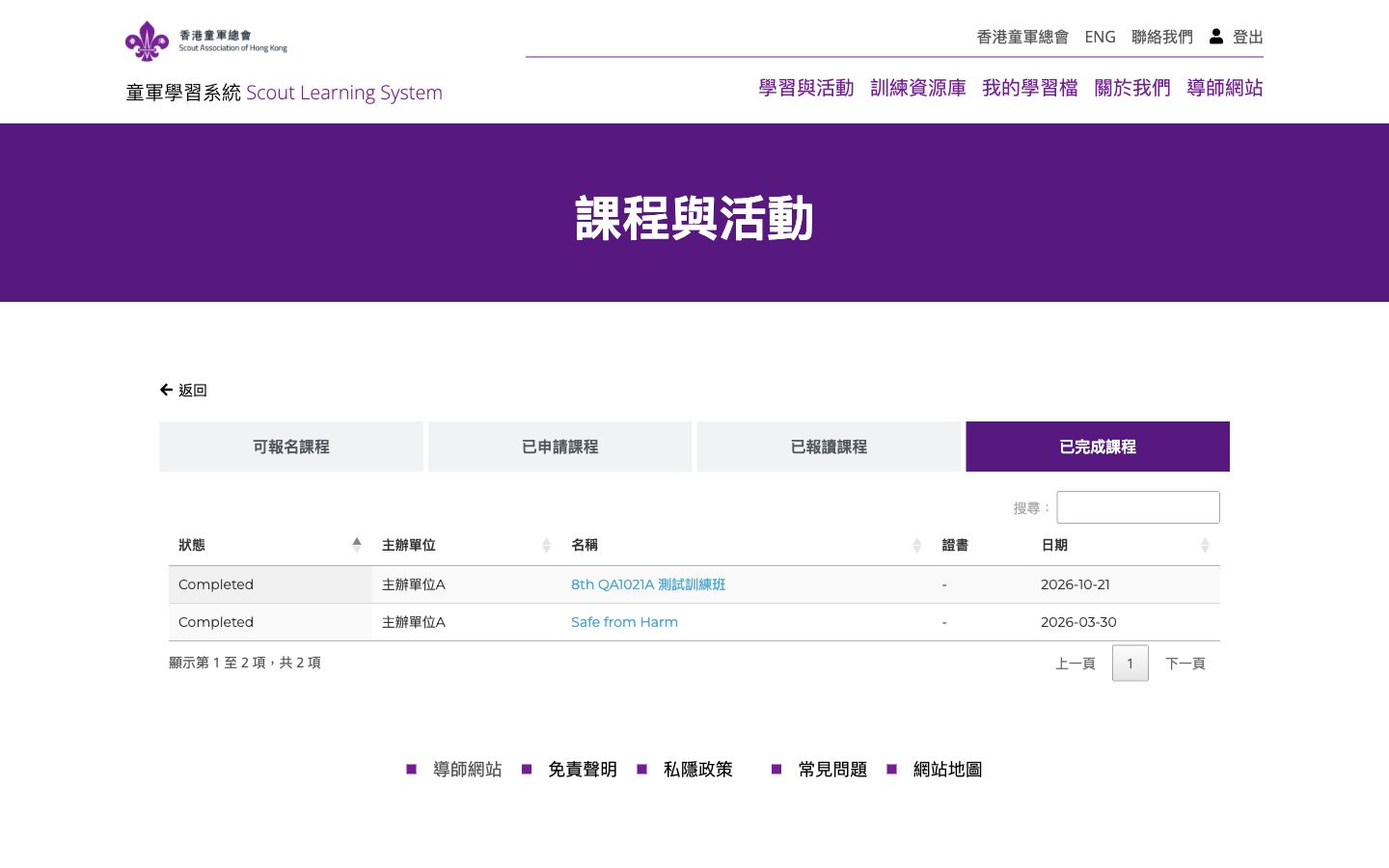
已完成課程 tab
已完成課程 tab
Stage 08 · Cancel

Cancel a courseOnly the System Course Master can cancel

SULK01 can't cancelACCA01 cancelsLearner sees it
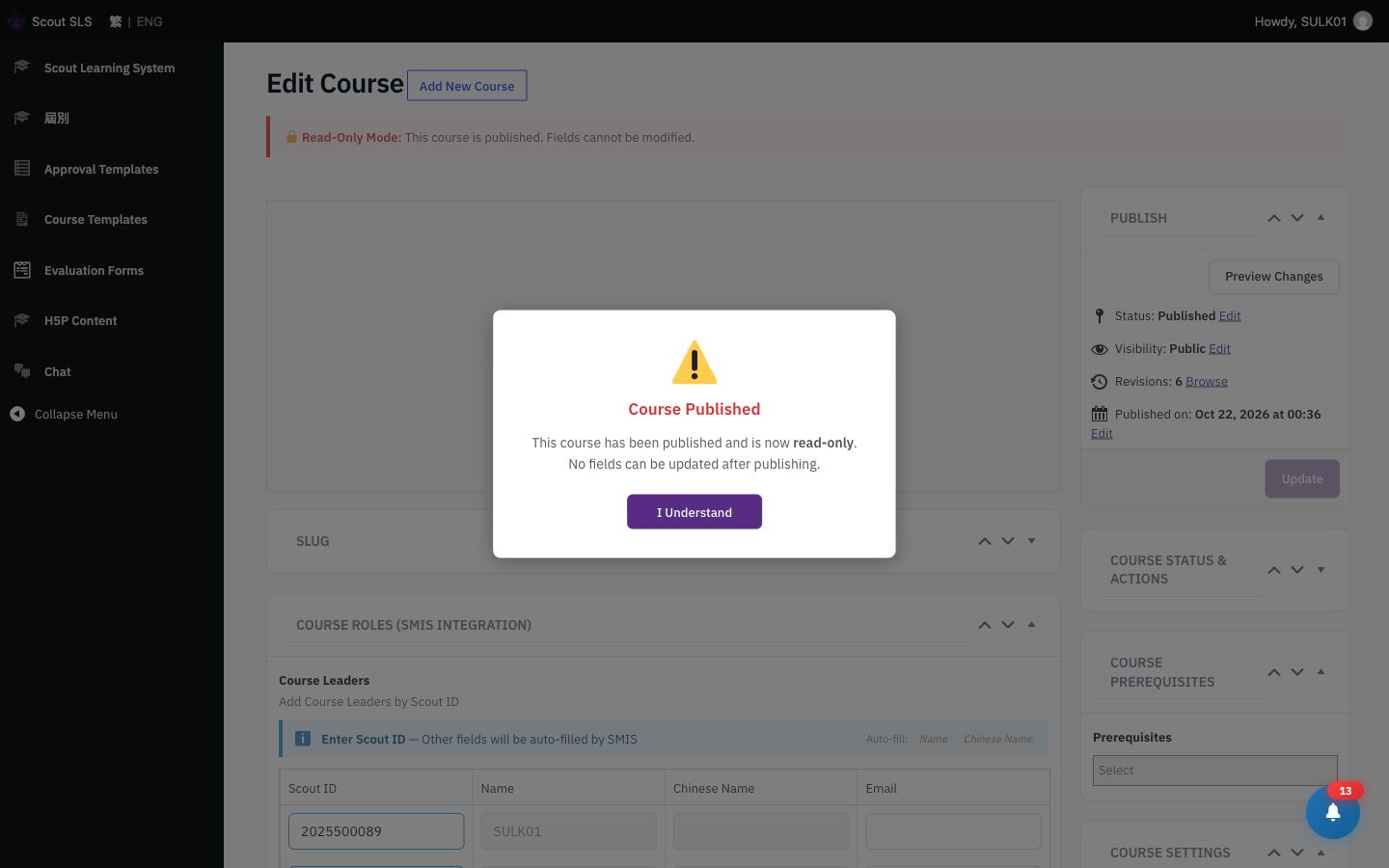
  1. Open a published course: an “I Understand” notice appears, and fields lock after publishing.
  2. As SULK01: there's no way to cancel.
  3. As ACCA01: 取消訓練班 → choose a reason → Confirm.
  4. Learner: 已報讀 shows Cancelled / 已取消, the course page shows “此訓練班已取消”, and the player won't open.

Show

  • The cancel reason is stored and applicants are notified.
  • Copying a cancelled course doesn't carry the cancellation over.
Stage 08 · Screens

Cancelling course 8379

Published course: “I Understand” notice
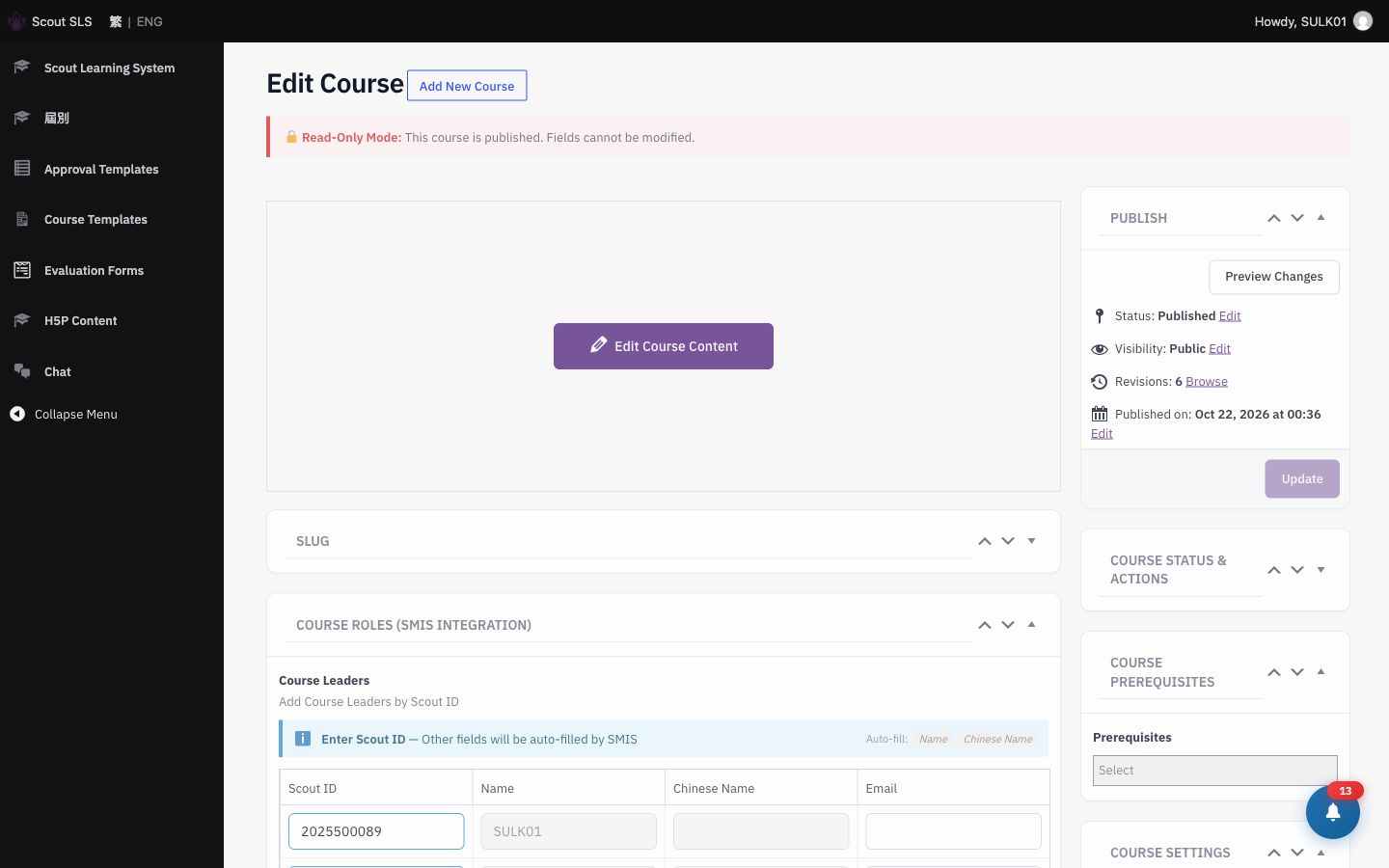
Group Course Master: no Cancel option
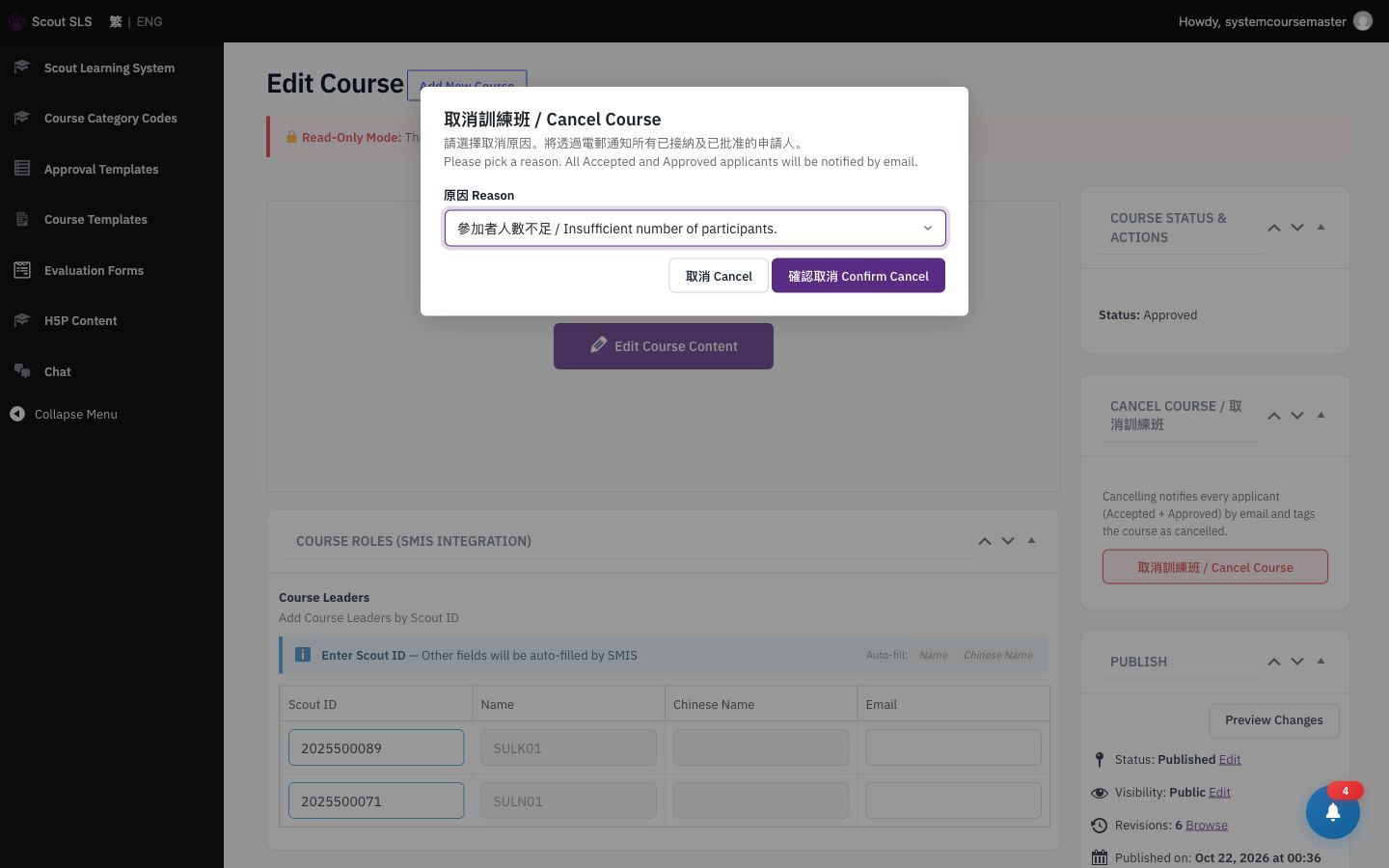
System Course Master: cancel with a reason
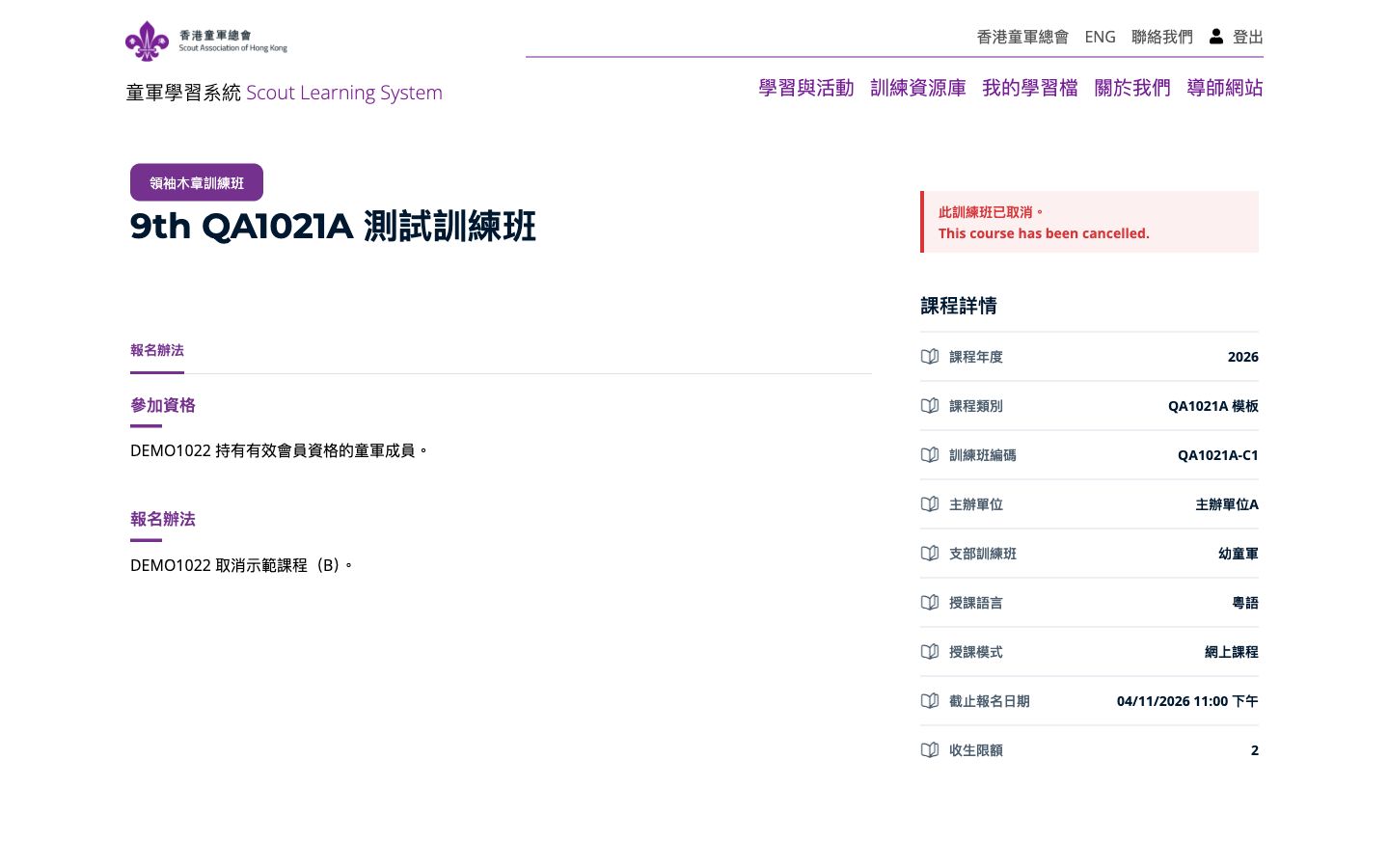
Learner: “此訓練班已取消”
Learner: “此訓練班已取消”
Access control

Who can do what

ActionAllowedBlocked
Set up approval flows and categoriesSystem Course MasterCourse masters, learners
Edit a course's contentIts leader, masters and editors; group masters for their unitReaders, approvers, learners
Edit while pending approvalSystem Course MasterEveryone else (locked)
Approve a courseThe approver at the current levelLater levels until it's their turn
Enrol beyond capacityNobodyRefused, with “Course is full”
Cancel a courseSystem Course MasterGroup / course masters
See uploaded mediaThe uploader (admins see everything)Other staff
Workflows

電郵通知及付款流程
Email notifications & payment

Which email goes out at each step of a course, and how a course with a fee runs through the online payment system (OEPS).

SLS flowchart · All email notifications

Every email, in the order a course runs

1 · Set-up →

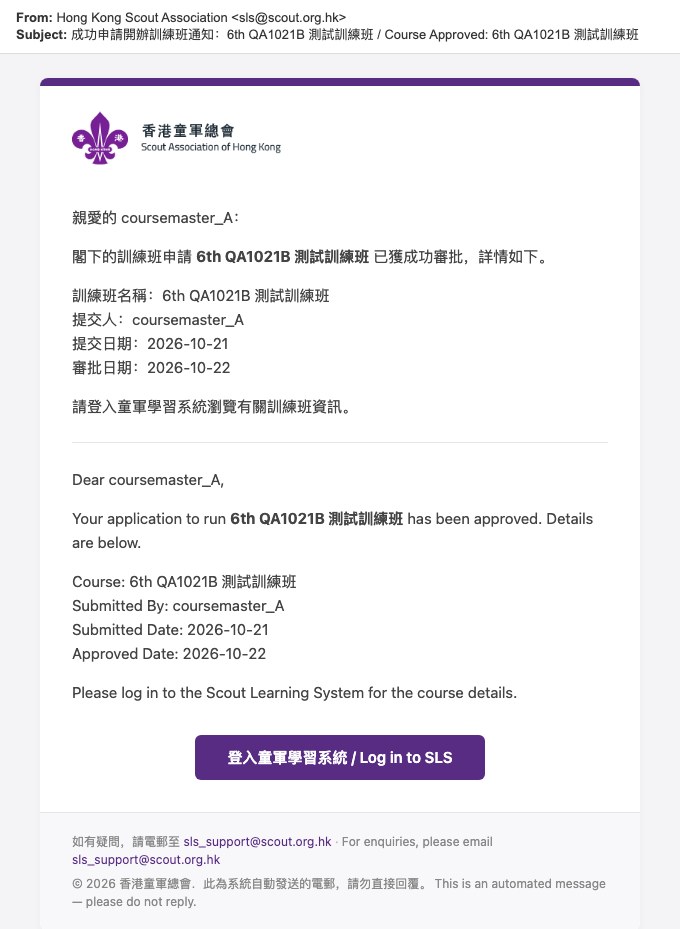
#2Course Approval RequestCourse submitted → approvers / Training BranchSLS
#2Approval ResultHeadquarters' decision → unit that appliedSLS
#4Course Leader AssignmentCourse saved with a new leader → that leaderSLS

2 · Applications →

#3Course InvitationInvite-only course opens → everyone invitedSLS
#5Application AcknowledgementLearner applies → applicantSLS
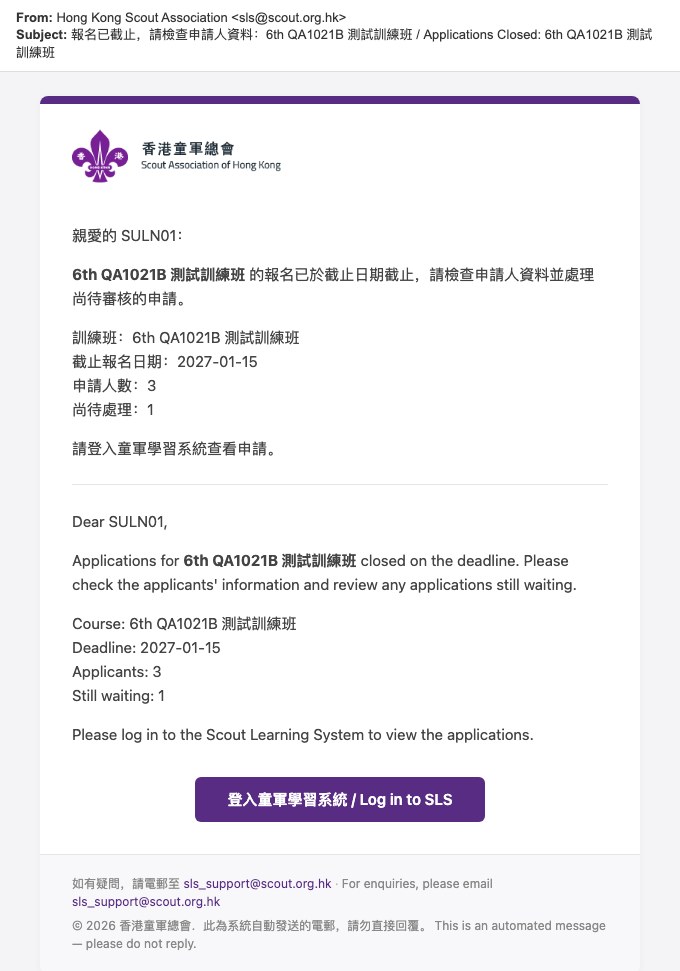
#12Reminder: check applicantsDay after the deadline → course leadersSLS
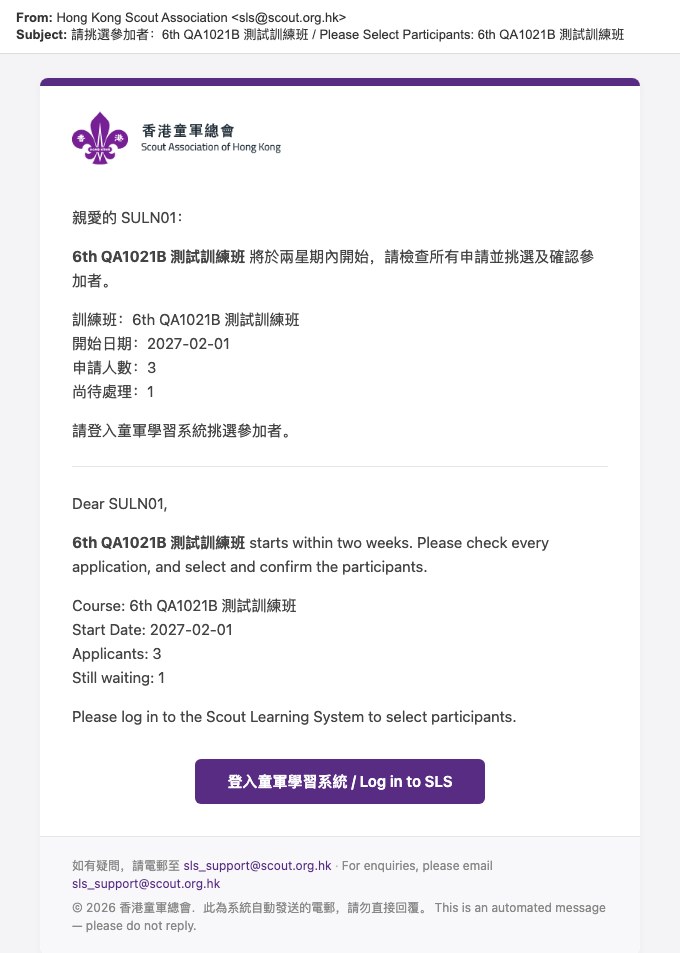
#13Select applicantsTwo weeks before start → course leadersSLS

3 · Decision & payment →

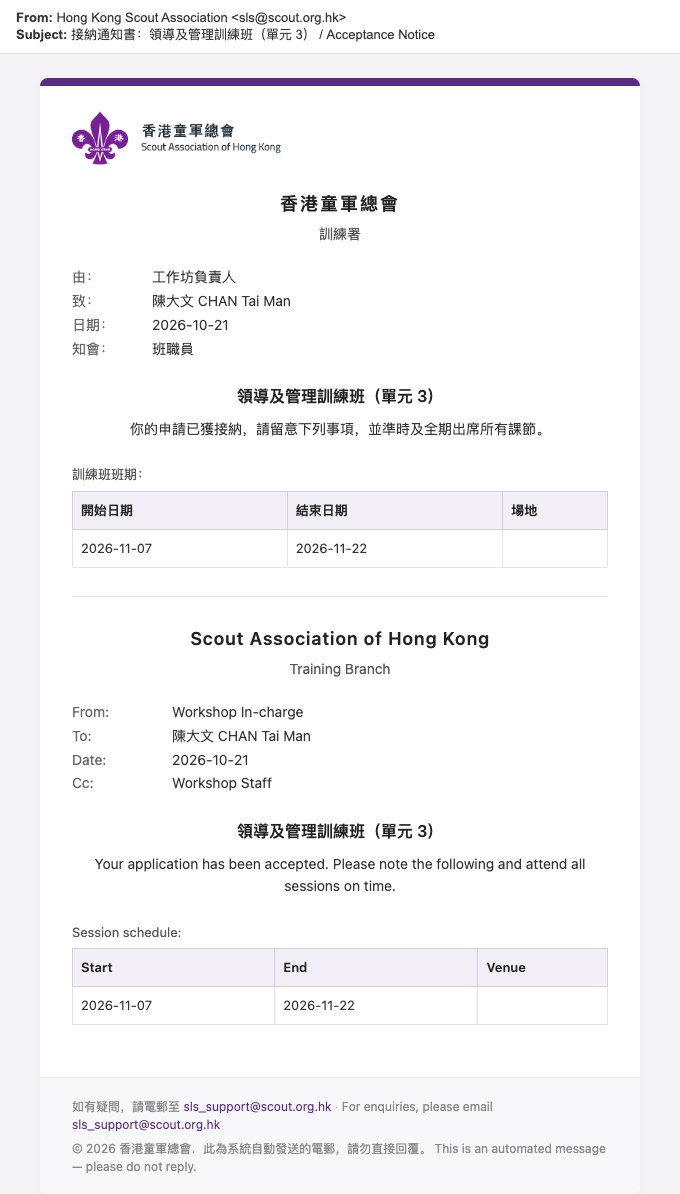
#6Application SucceededLeader / TO accepts (before Approve) → applicantSLS
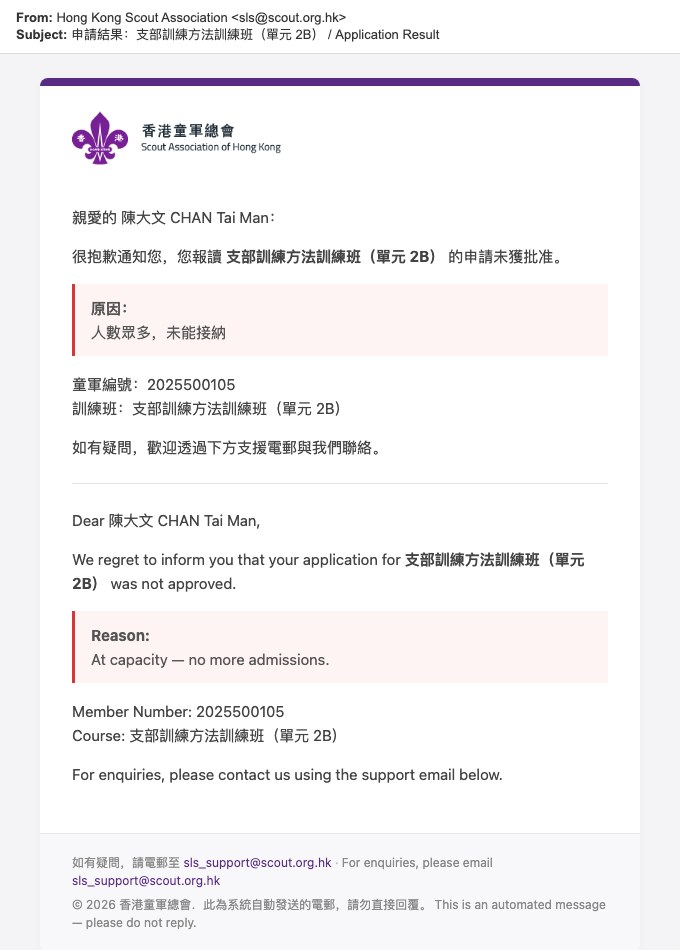
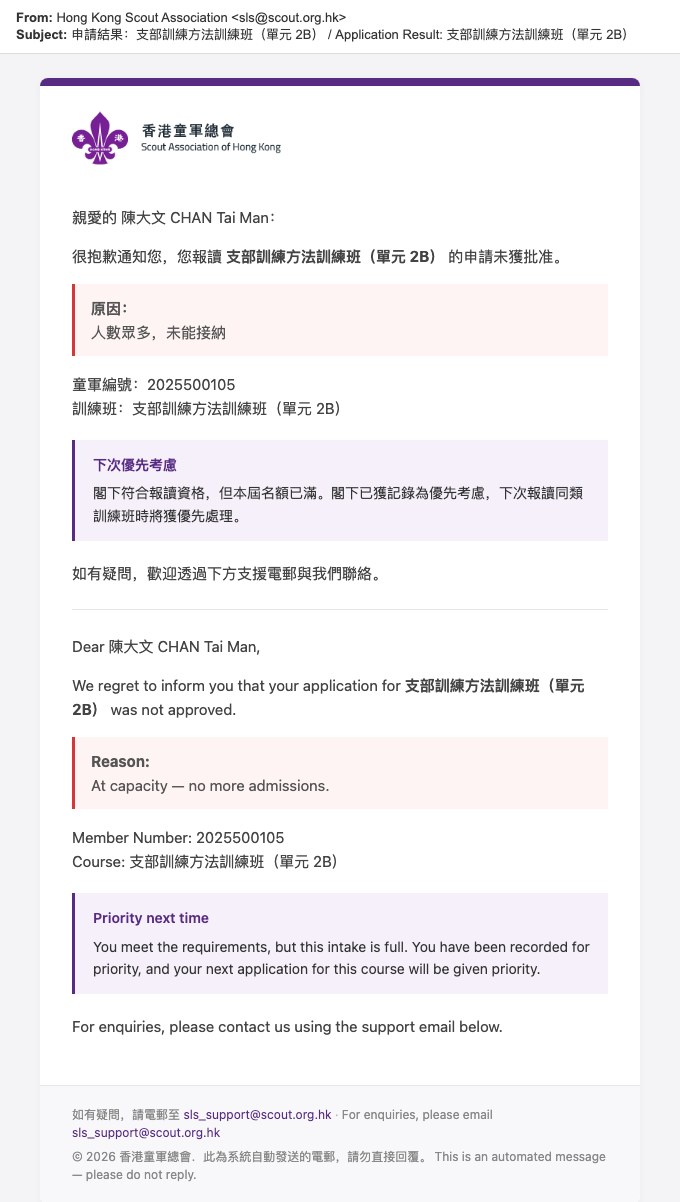
#10Application RejectionNot qualified / full (priority next time) → applicantSLS
OEPSPayment LinkPayment needed → applicantOEPS
OEPSPayment ReminderBefore the deadline → applicantOEPS

4 · Enrolment & run →

#7Application AcceptanceEnrolled → applicantSLS
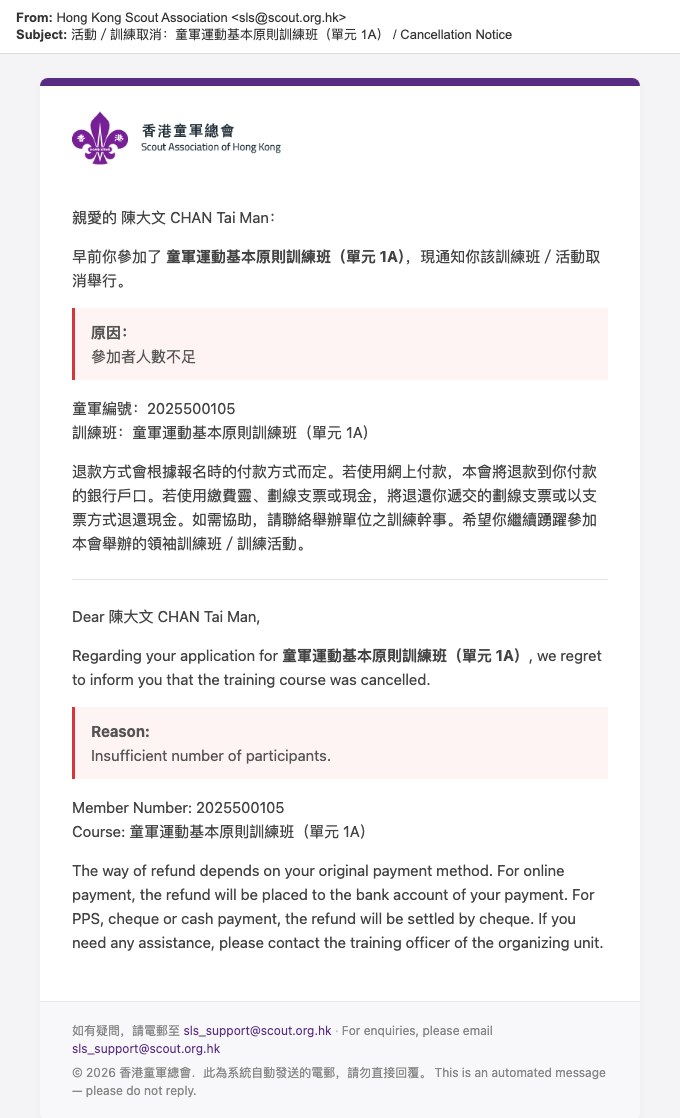
#11Cancellation of Activity / CourseCourse cancelled → everyone who joinedSLS
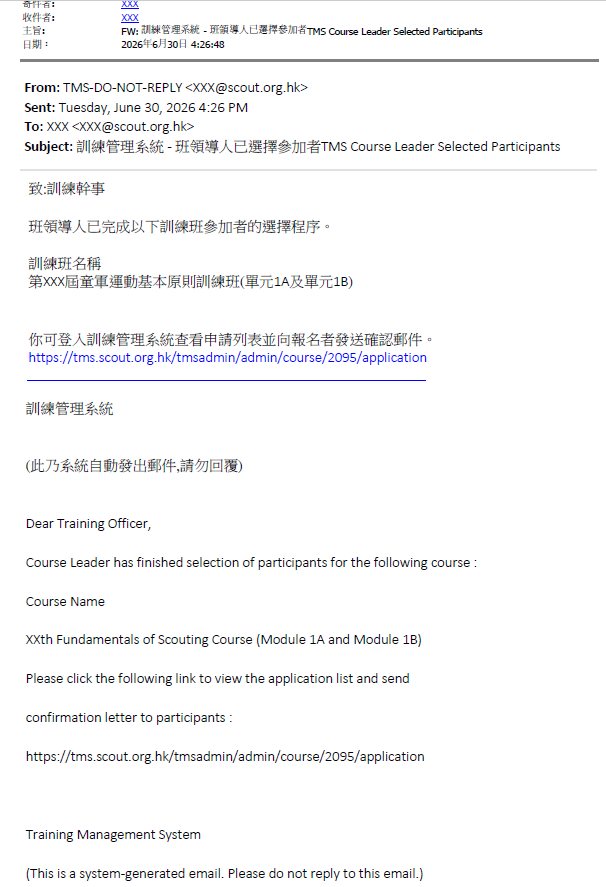
#14Send confirmation to selected→ training officerNot this phase
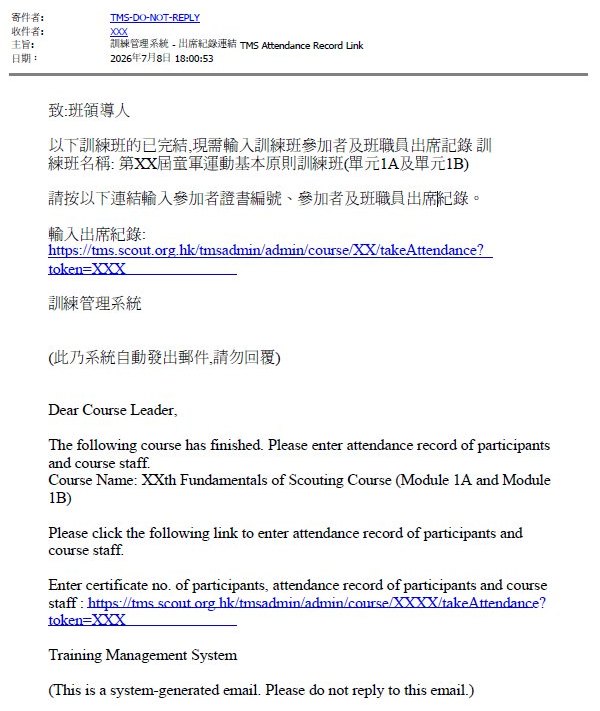
#15Attendance records link→ course leaderNot this phase

5 · Completion →

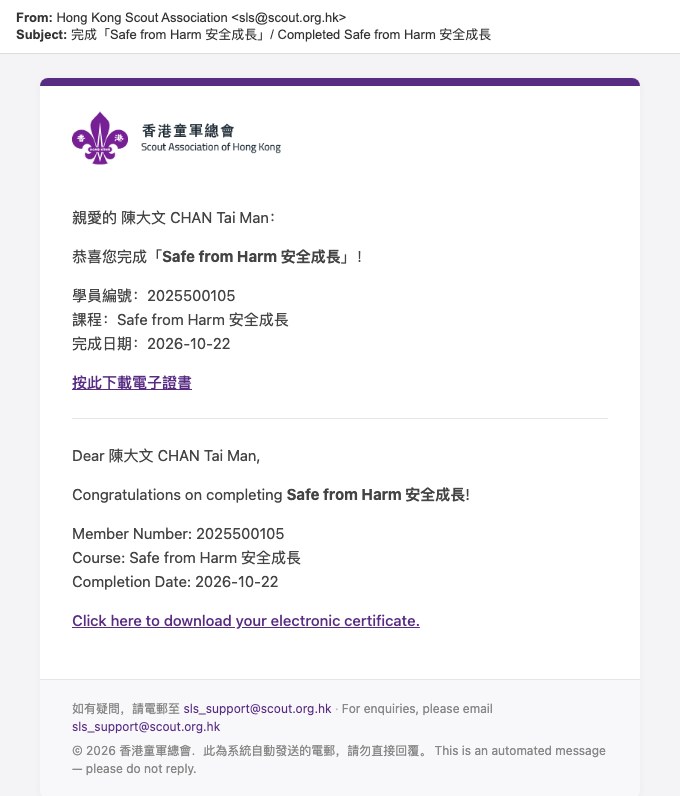
#1 · #8Course Completion / EndedCourse completed → learner, with certificate (e.g. Safe from Harm)SLS
#9Evaluation Request3 days before the end → learners yet to evaluateSLS

Accounts

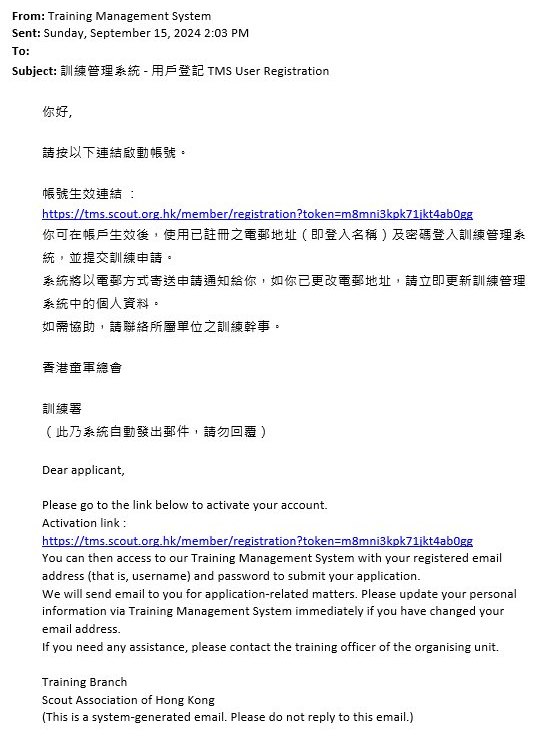
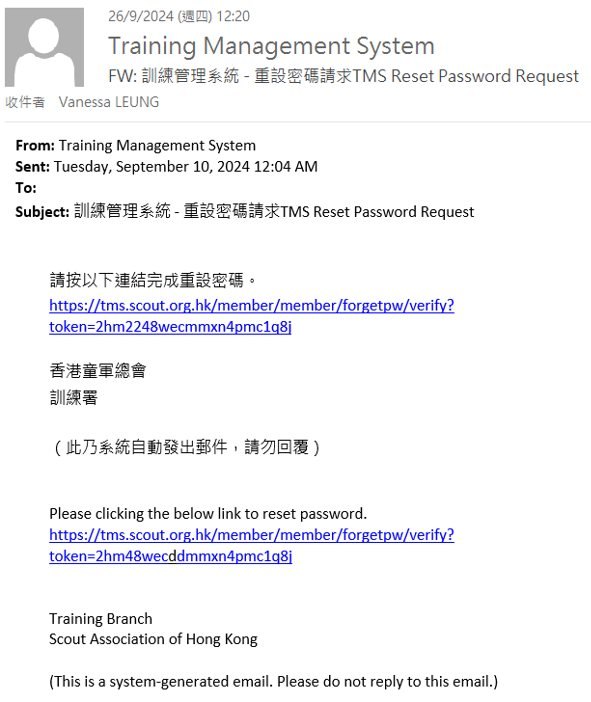
#16Account RegistrationNon-member signs up → userSMIS
#17Reset PasswordUser asks to reset → userSMIS
■ Sent by SLS■ Sent by OEPS (payment)■ Sent by SMIS (accounts)Dashed = not part of this phase
Email templates · 1 of 5

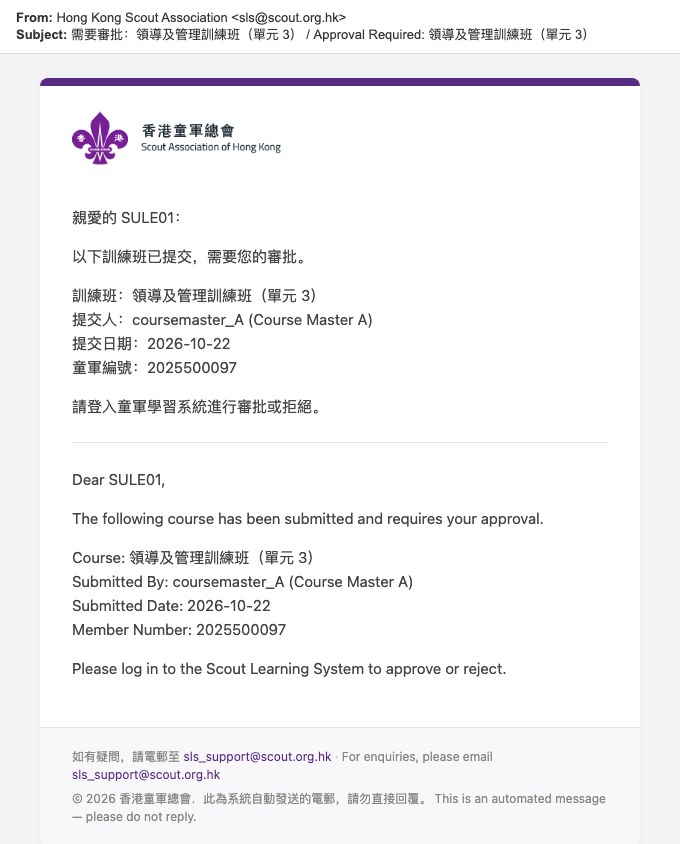
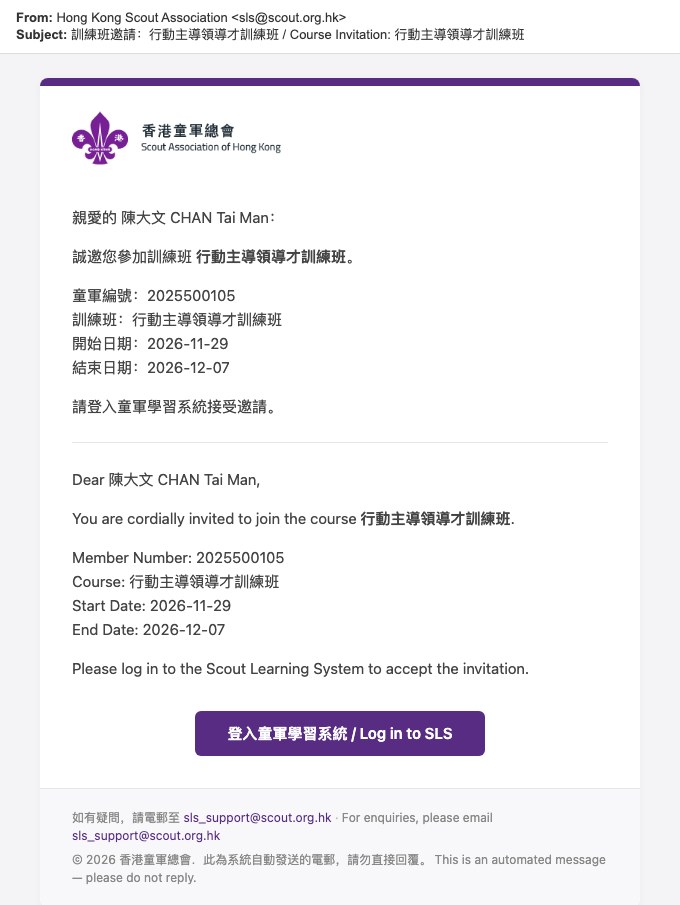
Completion, approval and invitation

Email templates · 2 of 5

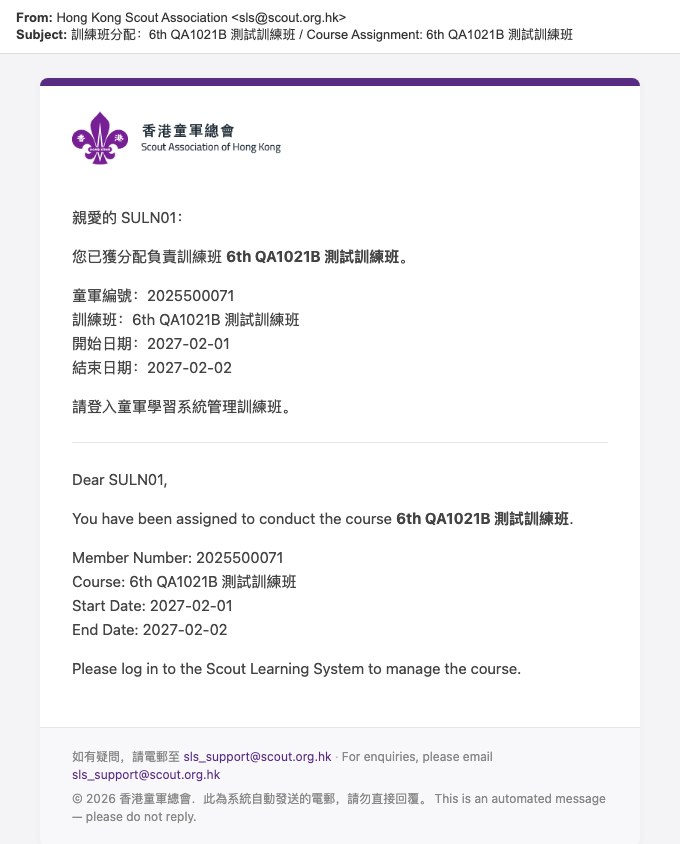
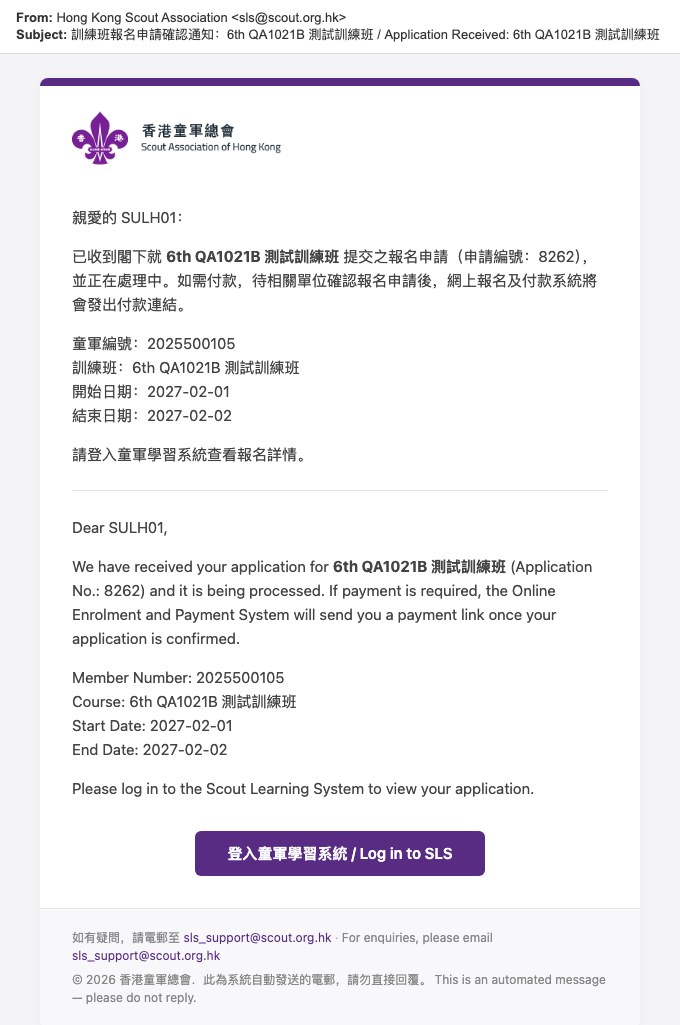
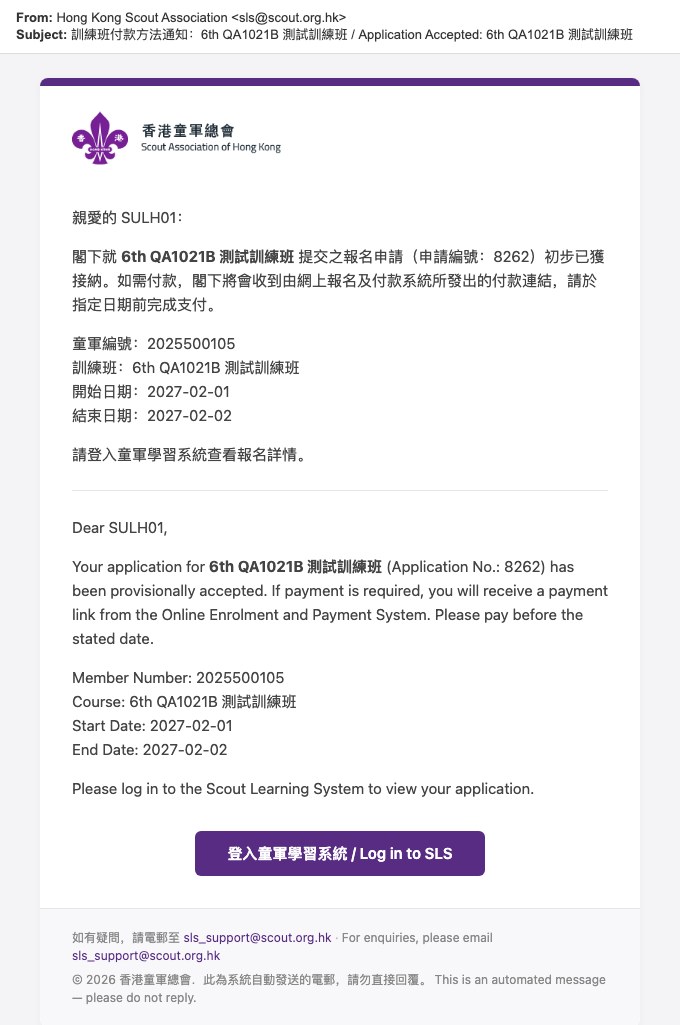
Leader assignment and the application

Email templates · 3 of 5

Evaluation, rejection and cancellation
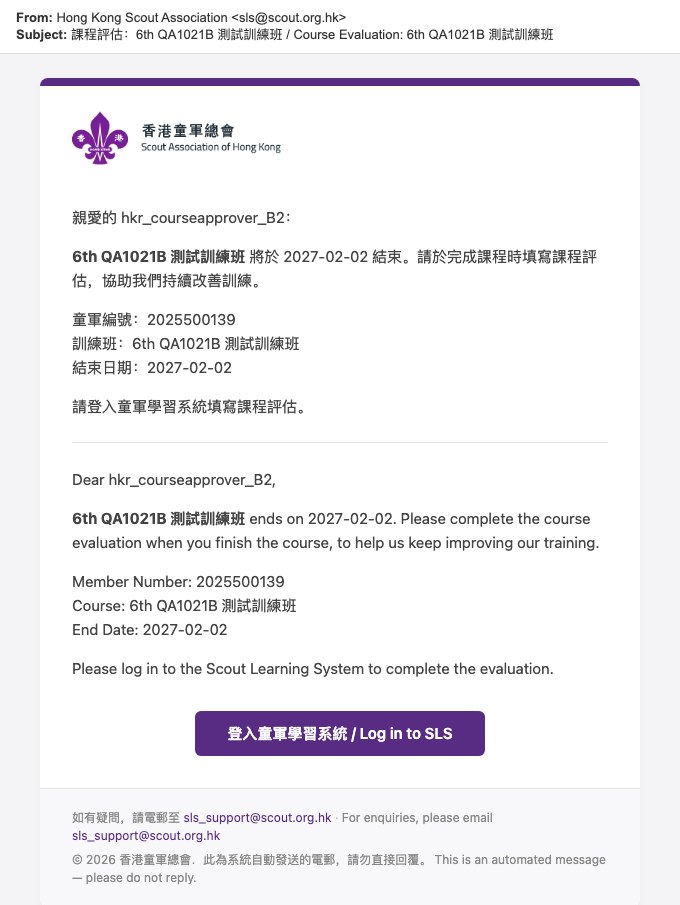
Email templates · 4 of 5

Staff reminders

Email templates · 5 of 5

Sent by other systems

OEPS · Course with payment

Payment workflow at a glance網上報名及付款系統 (OEPS) works alongside SLS for courses with a fee

BEFORECourse approval & invitations
  • Headquarters approves the new course
  • Course leader assigned, fills in content
  • Level-by-level approval
  • Invited, or open to the public
STEP 1The application
  • Applicant applies, gets an acknowledgement
  • Staff accept, reject, or reject with priority
  • Fee set by position: full, half or free
  • mPay sends the payment link
STEP 2Payment
  • Pay online on mPay
  • Or offline: cheque, cash, waived
  • Finance approves offline payments
  • Reminder before the deadline
STEP 3After enrolment
  • Acceptance email: enrolled
  • Withdrawal or cancellation handled
  • Completion and evaluation emails
  • Staff send the receipt
An email goes outPayment system (OEPS / mPay)Went wellNeeds another tryAutomatic, on a set date
OEPS · Before the course opens

Getting a course approved

1Request a new courseGroup course master asks headquarters✉ Course Approval Request
2Assign a course leaderAfter headquarters approves✉ Course Leader Assignment
3Fill in and submitLeader adds content and dates
4Approve level by levelEach level's approvers decide✉ Approval Required
5Open for applicationsPublic, or by invitation✉ Course Invitation (invited only)
What if…
Headquarters says noThe course does not go ahead.
An approver rejectsBack to the leader to fix and resubmit.
OEPS · Step 1

The application

1Applicant appliesOnline in SLS✉ Application Acknowledgement
2Staff reviewCourse leader / training officer
3AcceptEligible applicant✉ Application Succeeded
4Set the feeBy position: full, half or free
5Payment linkSent by OEPS (mPay), with an expiry date✉ Payment Link
What if…
Not eligibleApplication rejected.✉ Application Rejection
Eligible, but fullRejected, priority next time.✉ Rejection (priority)
No feeSkip payment: enrolled straight away.✉ Application Acceptance
Applications closeLeader is reminded to check applicants.✉ Reminder #12
OEPS · Step 2

Payment

1Receive the linkReminder before the deadline✉ Payment Reminder
2Pay onlineOn the mPay page
3Or pay offlineCheque, cash or waived; staff upload the proof
4Paid → enrolledPlace confirmed✉ Application Acceptance
What if…
Payment failsTry the same link again.
Deadline passesExtend it, or the place lapses.
Finance turns it downMarked not paid, with the reason.
OEPS · Step 3

After enrolment

1Course runsLearners attend and study
2Course completedCertificate issued✉ Course Completion
3EvaluationLearners give feedback✉ Evaluation Request
4ReceiptStaff send the receipt; all done
What if…
Applicant withdrawsStaff handle the withdrawal and refund.
Course cancelledEveryone who joined is told.✉ Cancellation
Two weeks before startLeader selects and confirms participants.✉ Select applicants #13
Presenter · before the demo

Preparation checklist

  • Log in once with every account. Use one browser profile per role.
  • Hard-refresh the builder (Ctrl/Cmd+Shift+R) so the latest scripts load.
  • Backups from the rehearsal: course 8357 (published, 2 enrolled, 1 waitlisted, SULH01 completed) and 8379 (cancelled).
  • Use a course template that has tag options, or Submit stops at “Tags required”.
  • Enrolment from today; deadline before the course start date.
  • The server is slow: Approve takes 10–20 s, Apply ~15 s. Wait for the alert.
  • If 課程與活動 → 可報名 keeps loading, open the course by its link.
  • If the evaluation form doesn't respond, click Submit once more.

Say if asked

  • Certificates on slsuat wait on a firewall change (SSL inspection of the certificate service).
  • Emails are not fully confirmed on UAT, so treat them as informational.
  • Uploads over 100 MB need the server's web limit raised first.